
Ventoy
Free open source tool to boot many ISO files from one USB drive
Download Now
Free for Windows, Linux. No registration required.
One of over 130 tools we've selected. No paid listings.
How we review software →Screenshots
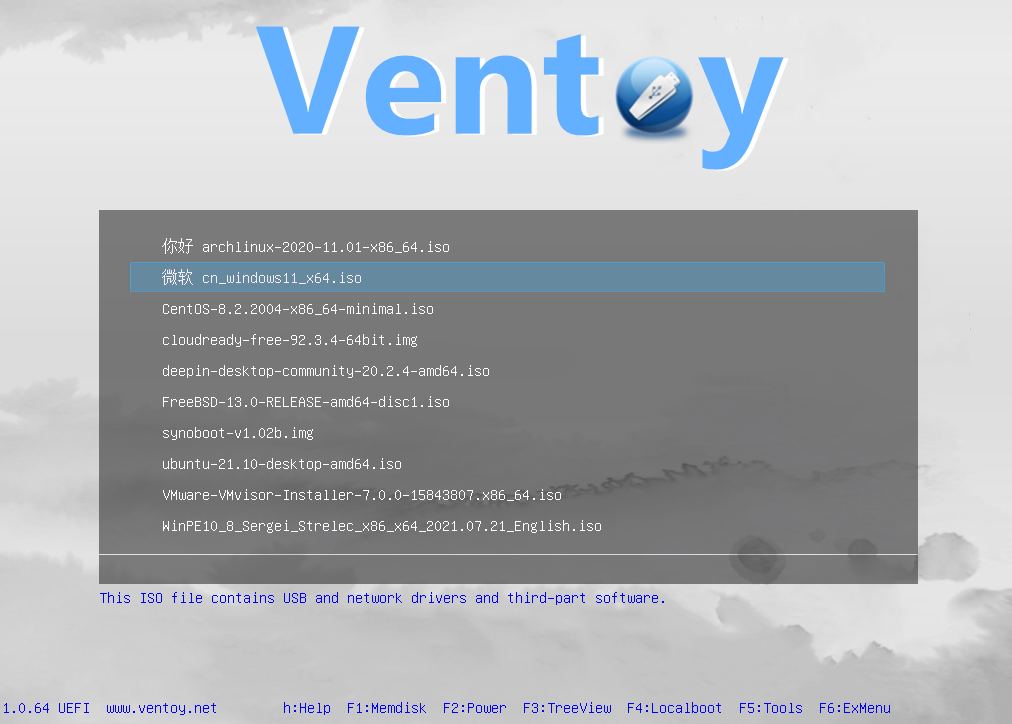
About Ventoy
Ventoy is a free, open-source tool that turns a USB drive into a boot menu for multiple operating system images. Instead of preparing a separate drive for every task, you install Ventoy once and copy the image files onto it. When you start a computer from the drive, you choose which image to run. It is a practical approach for trying Linux, keeping recovery tools nearby or preparing operating system installations.
Keep Several Tools on One Drive
A Ventoy drive can hold Windows installation media, Linux live environments and compatible maintenance images together. For example, you could keep a Linux desktop to explore alongside a recovery environment for a computer that will not start normally. The supported image formats include ISO, WIM, IMG, VHD(x) and EFI, so the menu is not limited to a single kind of system image. Compatibility still depends on the individual image and the computer you use.
Change Your Toolkit by Copying Files
Once Ventoy is installed, adding another image is a file-copying task. There is no need to extract its contents or recreate the bootable drive each time you change your selection. You can remove images you no longer need and organize the others into folders. Ventoy searches directories and subdirectories for supported files and lists them in its boot menu, making it easier to maintain a useful collection rather than a pile of single-purpose USB drives.
The drive can also hold ordinary documents and other files without stopping Ventoy from working. Updating Ventoy itself is separate from installing it for the first time: the official update process preserves the files on its main partition.
Work Across Different Boot Setups
Ventoy supports Legacy BIOS and UEFI boot modes, as well as MBR and GPT partition styles. That makes it useful when working with computers that do not all use the same firmware setup. Secure Boot support is available, but it is not a promise of automatic compatibility or equivalent security settings on every machine. The official documentation describes enrollment steps, firmware-specific requirements and a default policy that bypasses checks on EFI files. Review that guidance before using it on a security-sensitive system.
Keep Changes in Supported Linux Environments
For supported Linux live systems, the persistence plugin can retain changes between boots. It uses a separate data file associated with an image through Ventoy's configuration. This can be useful when you want to return to a live environment without starting from a clean session every time. Persistence needs extra setup and depends on the distribution; copying an ISO alone does not enable it.
Adapt the Menu to Your Routine
Ventoy's plugin framework offers options for custom menu names, themes and automated operating system installations. These features suit people building a repeatable maintenance toolkit, while the basic copy-and-boot workflow remains available without that extra configuration.
Check the Target Drive Before You Begin
The initial installation formats the selected drive and erases its existing data. Back it up first and check the selected device carefully. Test the images you intend to rely on with the actual computer before treating the drive as an emergency toolkit.
Editorial note: this description is based on the official documentation, not a hands-on test or security audit. The official screenshots show older releases and may differ from the current interface.
Key Features
One USB, many images
Copy several ISO files to the same drive and choose at boot.
Many image formats
ISO, WIM, IMG, VHD(x) and EFI files can be booted directly.
No re-formatting
Adding or removing images is a file copy.
Boot modes
Legacy BIOS and UEFI are supported, including UEFI Secure Boot.
Pros & Cons
Pros
- Free and open source (GPL-3.0)
- Add or replace images by copying files
- Works with many operating system images
- Supports both BIOS and UEFI machines
Cons
- Installing Ventoy on a drive erases its existing data
- Official desktop installer is for Windows and Linux
Frequently Asked Questions
Is Ventoy free?
Yes. It is free and open source under GPL-3.0.
Do I need to reformat the USB drive for each ISO?
No. After the first install you copy image files to the drive.
Which boot modes are supported?
Legacy BIOS, UEFI and UEFI Secure Boot, according to the official site.
Screenshots