10 Best Free Disk Space Analyzers for Windows 11 (2026)
- Disk Space Analyzer
- Storage
- Free Software
- Windows 11
- System Tools
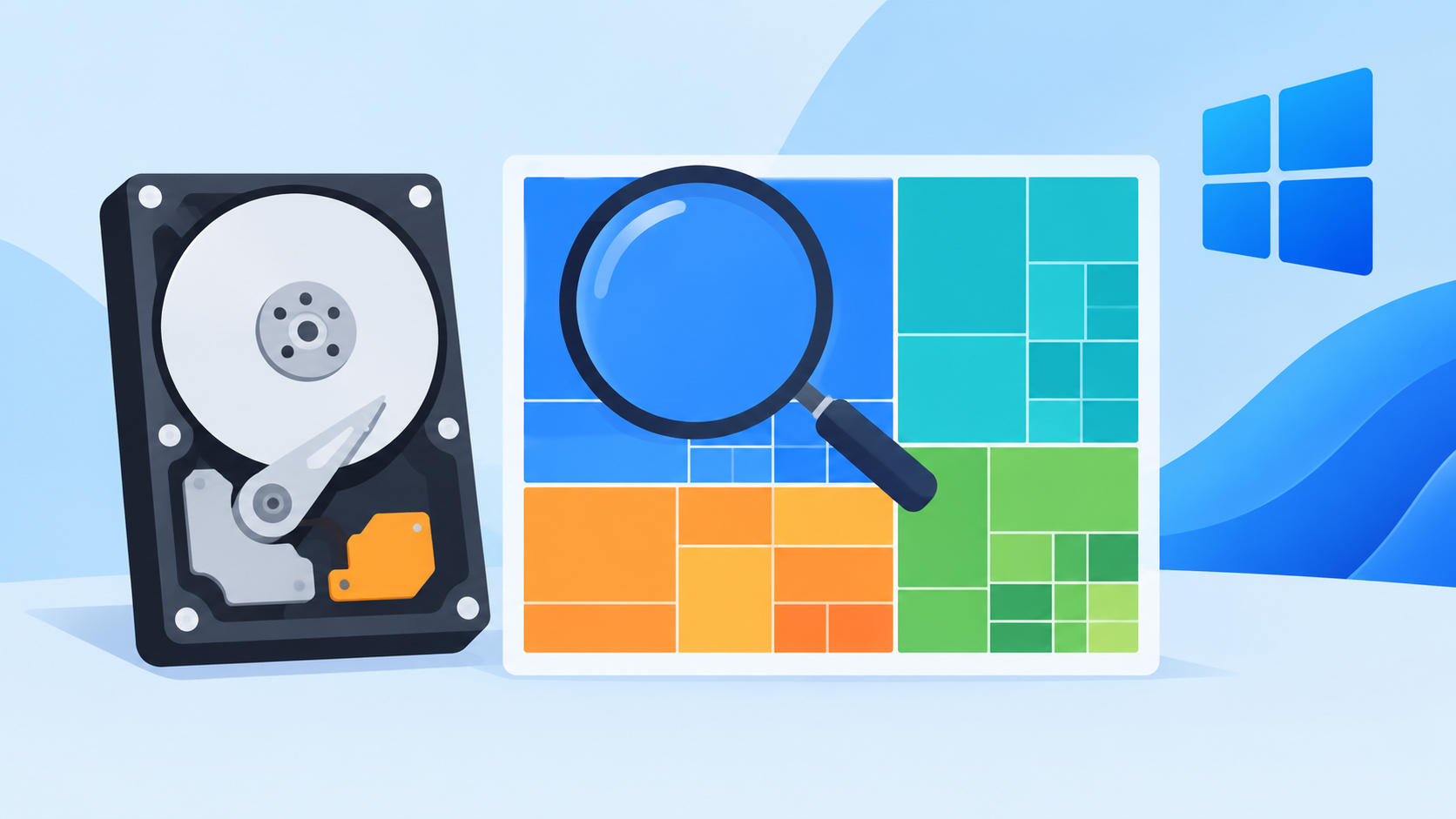
Windows 11 will happily warn you that your drive is almost full. What it won't tell you is why. Disk space analyzers fix that: they scan your drive and turn the result into a map - treemaps, sunbursts or plain sorted lists - so you can see exactly which folders and files eat your storage, and clean up with confidence instead of guessing.
Every tool below is free for personal use and runs on Windows 11. Here are the 10 best options.
Tool | Visual style | Free model |
|---|---|---|
WinDirStat | Treemap | Open source |
WizTree | Treemap, fastest scans | Free for personal use |
TreeSize Free | Tree view | Freemium |
SpaceSniffer | Live treemap | Freeware |
SquirrelDisk | Animated sunburst | 100% free |
Scanner | Sunburst | Freeware |
RidNacs | List with bars | Freeware |
Xinorbis | Charts and reports | Free |
Folder Size | Tree and charts | Free |
Windows Storage settings | Category list | Built in |
1. WinDirStat

WinDirStat is the open-source veteran of disk analysis, and it earned that status. After scanning a drive or folder, it shows a sortable directory tree, an extension breakdown and the famous treemap: every file is a rectangle, sized by the space it takes and colored by type. Big space hogs jump out immediately.
Recent versions modernized the app with dark mode, faster NTFS scanning, duplicate detection by content hash, file watching and CSV/JSON exports. Install it from the Microsoft Store, an MSI installer, a portable ZIP or Chocolatey. It's not the fastest on huge drives, but it's thorough and completely free.
Best for: a proven open-source all-rounder.
2. WizTree
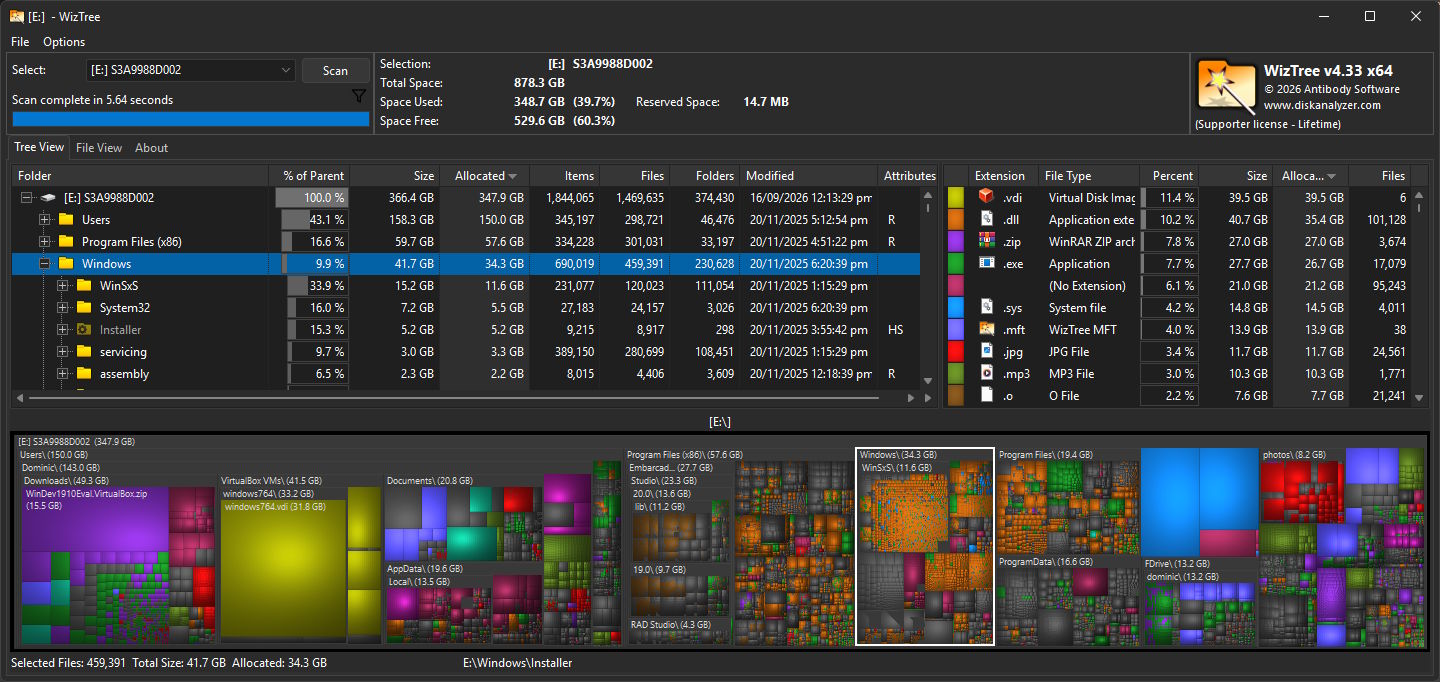
WizTree is the fastest analyzer on this list, and it's not close. On NTFS drives it reads the Master File Table directly (the same trick Everything uses), so a full-drive scan that takes minutes elsewhere finishes in seconds. It also counts hard-linked files correctly, so its totals match what Windows reports.
The treemap and the "top 1000 largest files" view make space hogs obvious, and there's a portable version for your USB toolkit. WizTree is free for personal use; the developer encourages an optional supporter code, and business use requires one.
Best for: speed on large drives.
3. TreeSize Free

TreeSize has been around for more than 25 years, and the free version covers what most people need: scan a drive or folder, see sizes in a clean tree view with a gradient bar chart, and drill into the biggest offenders. Explorer right-click integration makes ad-hoc checks painless.
The free edition is for private, non-commercial use. Paid tiers add detailed reports, duplicate search and network scanning, but for a quick answer to "what's eating my SSD", Free is enough.
Best for: a polished, no-nonsense folder-size view.
4. SpaceSniffer
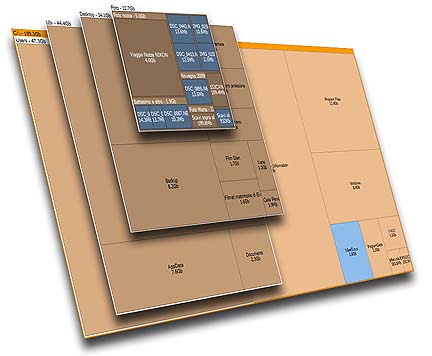
SpaceSniffer is a portable freeware classic: run the exe, pick a drive, and watch a treemap build live as the scan runs. You can zoom into folders, filter by file size, type or age, and keep drilling until you find the culprit.
Development is slow these days, but the current version still works fine on Windows 11. One warning: download it only from the author's page or its official mirror. Third-party download sites have a habit of wrapping popular freeware in installers you don't want.
Best for: a portable visual scan you can carry on a USB stick.
5. SquirrelDisk
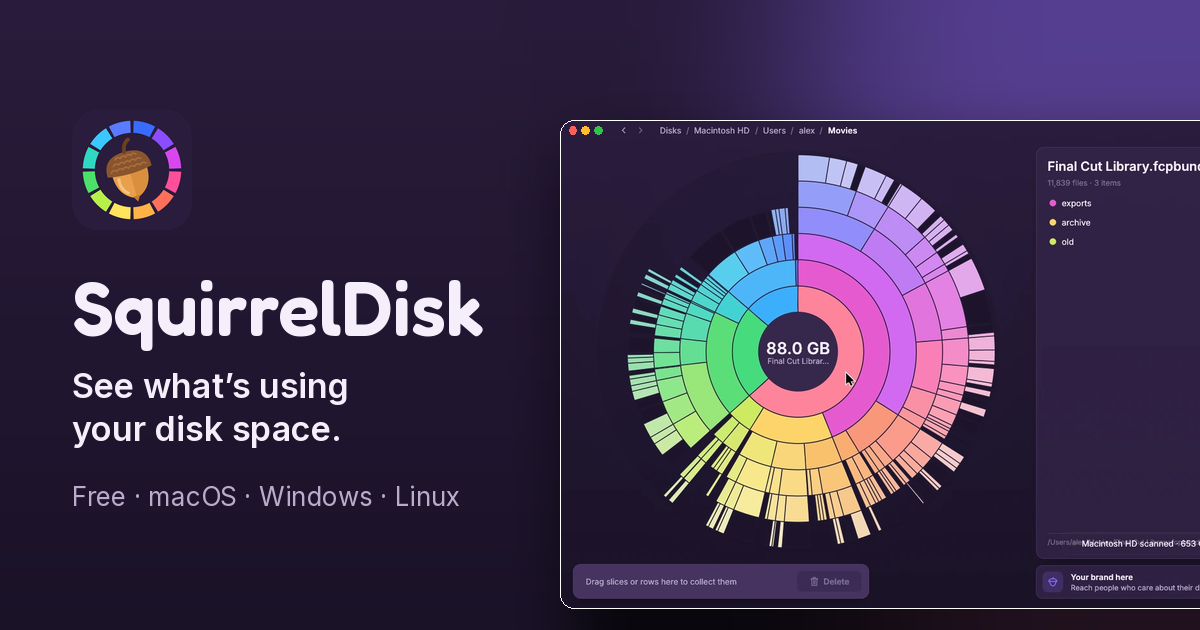
SquirrelDisk is the modern option: free, cross-platform (Windows, macOS, Linux) and genuinely pleasant to use. Your disk becomes an animated sunburst chart that builds while the scan runs, the biggest folders surface first, and clicking a slice zooms in.
Its nicest idea is the collector: drag folders into it as you explore, then move the whole batch to the Trash at once - recoverable if you change your mind. If you find WinDirStat's looks stuck in another era, start here.
Best for: a modern interface and mixed-OS households.
6. Scanner
Scanner by Steffen Gerlach is a 243 KB piece of freeware history: a sunburst chart that shows all directory levels at once, with no installation and no fuss. Version 2.13 dates back to 2012, which shows in the interface, but it still runs on Windows 11 and still answers the core question instantly.
There's something charming about a tool that does one job in a quarter of a megabyte.
Best for: an ultra-lightweight classic.
7. RidNacs

RidNacs skips the fancy visuals for a familiar file-manager layout: a tree view with a percentage bar column that makes large folders obvious without a treemap. It's free, scans local and network drives quickly, and adds itself to the Explorer context menu.
Its strength is reporting: export results as XML, HTML, CSV or plain text, so you can print them or compare scans over time. Small files can be grouped under a size threshold to keep the view clean.
Best for: people who prefer sorted lists and printable reports.
8. Xinorbis
Xinorbis is the analyst's choice. It scans anything your PC can see - hard drives, SSDs, single folders, removable and network drives - and answers with a mix of tables, charts and tree views: file categories, size and age distribution, the largest folders, wasted space.
Reports export to CSV, HTML and XML, and there's a portable version. A full open-source rewrite (Xinorbis 10) is in progress, which makes it a project worth watching.
Best for: detailed reports and deep analysis.
9. Folder Size
Folder Size from MindGems fills the gap Explorer never fixed: it shows the size of every folder and subfolder, sorts them, and adds bar and pie charts for the visual learners. Right-click integration means you can analyze any folder straight from Explorer.
It scans local drives, USB sticks, NAS boxes and network shares, and it installs no services or shell hooks, so it costs nothing when idle. The free version covers the essentials.
Best for: a straightforward folder-size view with charts.
10. Windows 11 Storage Settings
The built-in option deserves its spot: Settings > System > Storage breaks your drive into categories (apps, temporary files, documents, system), flags large files, and offers cleanup recommendations. Storage Sense can automate the boring parts, emptying the recycle bin and clearing temp files on a schedule.
There's no visual map, and it won't find a bloated folder buried six levels deep. But for a quick health check, it's already on your PC and needs no download at all.
Best for: a fast overview with zero installs.
How to Choose the Right Disk Analyzer
Fastest scans on NTFS drives: WizTree.
Open source: WinDirStat.
Modern and cross-platform: SquirrelDisk.
Reports and exports: Xinorbis or RidNacs.
Nothing to install: Windows Storage settings.
Most people should start with WinDirStat or WizTree. Between them, no mystery folder survives.
A Quick Note Before You Delete
An analyzer shows you what's big, not what's safe. Personal files, old downloads and forgotten game installs are usually fair game. Windows, Program Files, AppData and anything you don't recognize are not. When a tool offers deletion, prefer the recycle bin over permanent delete, and never empty system folders just to reach a round number.
Frequently Asked Questions
How do I see what's taking up space on Windows 11?
Start with Settings > System > Storage for the built-in category breakdown. For a real map of your drive, run WinDirStat or WizTree: both are free and show the largest folders visually, in seconds to minutes depending on the drive.
What is the fastest free disk space analyzer?
WizTree. On NTFS-formatted drives it reads the Master File Table directly instead of walking every folder, which turns full-drive scans into seconds. It also reports totals that match what Windows shows.
Are disk space analyzers safe to use?
Yes. They read your drive; they don't change anything on their own. Deleting is always a separate action you choose. Stick to official download pages, especially for SpaceSniffer, which is only distributed through the author's site and its official mirror.
Can these tools delete files, or only analyze?
Most can delete, usually to the recycle bin, and SquirrelDisk builds its whole cleanup flow around that. But analysis is the safe default: explore first, delete only what you recognize, and keep system folders untouched.
Why is my C: drive full when my files don't add up?
Hidden system data: the hibernation and page files, System Restore points, Windows Update leftovers and other protected items a normal scan can't see. Run your analyzer as administrator to include them, and let Storage Sense clean system leftovers safely.