Best Free Photo Editors for Windows 11
- Photo editing
- Windows 11
- Free software
Sometimes a photo needs a careful repair. Sometimes it needs a crop, a little more light and absolutely no subscription. Those are different jobs, and the best free photo editor for Windows 11 depends on which one you actually have.
My starting pick is Paint.NET for everyday edits, GIMP for detailed retouching and composites, and darktable for a RAW photography workflow. PhotoDemon is the interesting portable option: a proper layer-based editor you can keep on a USB stick.
This selection compares eight desktop tools by their intended use, official features and free-download terms. It is not a speed benchmark or a claim that every app has been tested on the same PC. There are no time-limited trials in the list. Some projects also sell optional store editions, which is different from putting the useful tools behind a subscription.
Free photo editors for Windows 11: quick comparison
Editor | Best fit | Free option | Main trade-off |
|---|---|---|---|
Everyday editing with layers | Free classic download; paid Store edition optional | Windows only; check current hardware requirements | |
Retouching, selections and composites | Free and open source | More tools to learn | |
Portable editing without installation | Free and open source, BSD license | Windows only | |
Simple edits across different operating systems | Free and open source | Not my first choice for a complex retouching job | |
RAW development and a photo catalogue | Free and open source | Photography workflow, not layered compositing | |
Detailed RAW processing | Free and open source, GPLv3 | Processing controls take time to learn | |
Painting over photos and illustration | Free official download; optional paid store builds | Painting-first rather than photo-first | |
Organising a collection, then editing it | Free and open source | More application than a quick crop needs |
1. Paint.NET: my starting point for everyday edits
Paint.NET sits in a useful middle ground. You get layers, unlimited undo, adjustments and effects, without starting with a photography catalogue or a painting studio. For adding text to a picture, combining a few images, cropping a screenshot or fixing a washed-out JPEG, that is an appealing balance.
I would start here if you want to learn layers without making image editing your new weekend occupation. Its plugin community is another reason to keep it around, although a plugin-dependent workflow needs more care than one built entirely around standard tools.
The free part: use the classic download reached through the official project site. The Microsoft Store edition is a paid way to support development, not the only way to get the app. Also check the current system requirements: the official download page specifies a 64-bit processor with AVX2 on Intel/AMD, or ARM64, at least four cores and Direct3D 11 graphics. "Runs Windows 11" does not tell the whole hardware story.
2. GIMP: for the edits that need more control
GIMP is the one I would choose when the job involves careful selections, masks, retouching or several images combined into one. Its editing tools, colour-management options and plugin support give it room to grow beyond occasional touch-ups.
The trade-off is learning where things are and how the tools work together. That is a reasonable investment if you regularly edit images; it is less appealing if you only need to straighten one holiday photo. Start with one task rather than trying to understand the entire interface at once.
GIMP is free and open source. Treat it as a capable editor in its own right, not a promise of perfect Photoshop project compatibility. If camera RAW files are central to your work, look at darktable or RawTherapee for the development stage, then use GIMP for the detailed pixel work afterward.
3. PhotoDemon: the portable editor worth knowing
PhotoDemon is my pick when installation is the nuisance. Download the ZIP, extract it and run the editor from its folder or a USB stick. The project says no administrator rights or internet connection are needed for editing. On a managed PC, follow its software policy even if an app is portable.
There is plenty inside that small package: layers, selection tools, paintbrushes, content-aware fill and resize, lens correction and a macro recorder with batch processing. Its official format support includes PSD, XCF and PSP. Keep originals when moving projects between applications; format support is not a guarantee that every effect will translate.
The stable download listed by the project is PhotoDemon 2025.12, about 22 MB. It is BSD-licensed and free for personal or commercial use. Windows-only is the main catch if your workflow also involves a Mac or Linux machine.
Official PhotoDemon screenshot, courtesy of the PhotoDemon project. This older 9.0 interface image illustrates the tools; it is not a capture of the current stable build.
4. Pinta: keep the small jobs small
Pinta is a good shortlist candidate for cropping, resizing, annotations and straightforward image editing, especially if you also use Linux or macOS. The project puts familiar selection and drawing tools up front, alongside clone, recolour and magic-wand tools.
Live effect previews and unlimited undo make experimentation less intimidating. I like its role as a smaller starting point: you can finish a simple image without first deciding which professional workflow you belong to.
For detailed retouching and complex composites, I would start with GIMP instead. Pinta earns its place by keeping common tasks approachable, not by winning a contest for the longest toolbar. It is free and open source, with Windows downloads available from the project.
5. darktable: for a whole RAW photography workflow
darktable answers a different question: how do you organise a shoot and develop the photographs without changing the original files? It combines a lighttable for browsing and managing images with a darkroom for non-destructive processing.
This is the place to look for exposure and colour work, local adjustments and a repeatable route from camera files to finished exports. It is a photography workflow rather than a tool for putting three heads onto one person. For that particular family portrait emergency, use a layer-based editor.
I would choose darktable when the catalogue and development process belong together. Its module-based approach is worth learning deliberately. Begin with a small selection of photos, keep backups of your originals and editing data, and check your camera's current support before moving an entire library.
6. RawTherapee: for people who want to understand the RAW controls
RawTherapee focuses on RAW processing. Its official feature set includes a non-destructive 32-bit floating-point engine, several demosaicing choices and detailed colour and image-detail controls. That makes it a strong candidate if you want to spend time on the development of individual photographs.
The useful distinction from darktable is where I would begin: darktable for a combined catalogue-and-darkroom workflow, RawTherapee when processing is the main attraction. Neither choice is a claim that one produces better pictures in every situation. Camera files, settings and the person making the decisions matter.
RawTherapee is free under GPLv3 and runs on Windows, macOS and Linux. The project links to RawPedia and its forum, which are sensible companions when the controls become unfamiliar. Do not confuse the number of available sliders with the number you need to change.

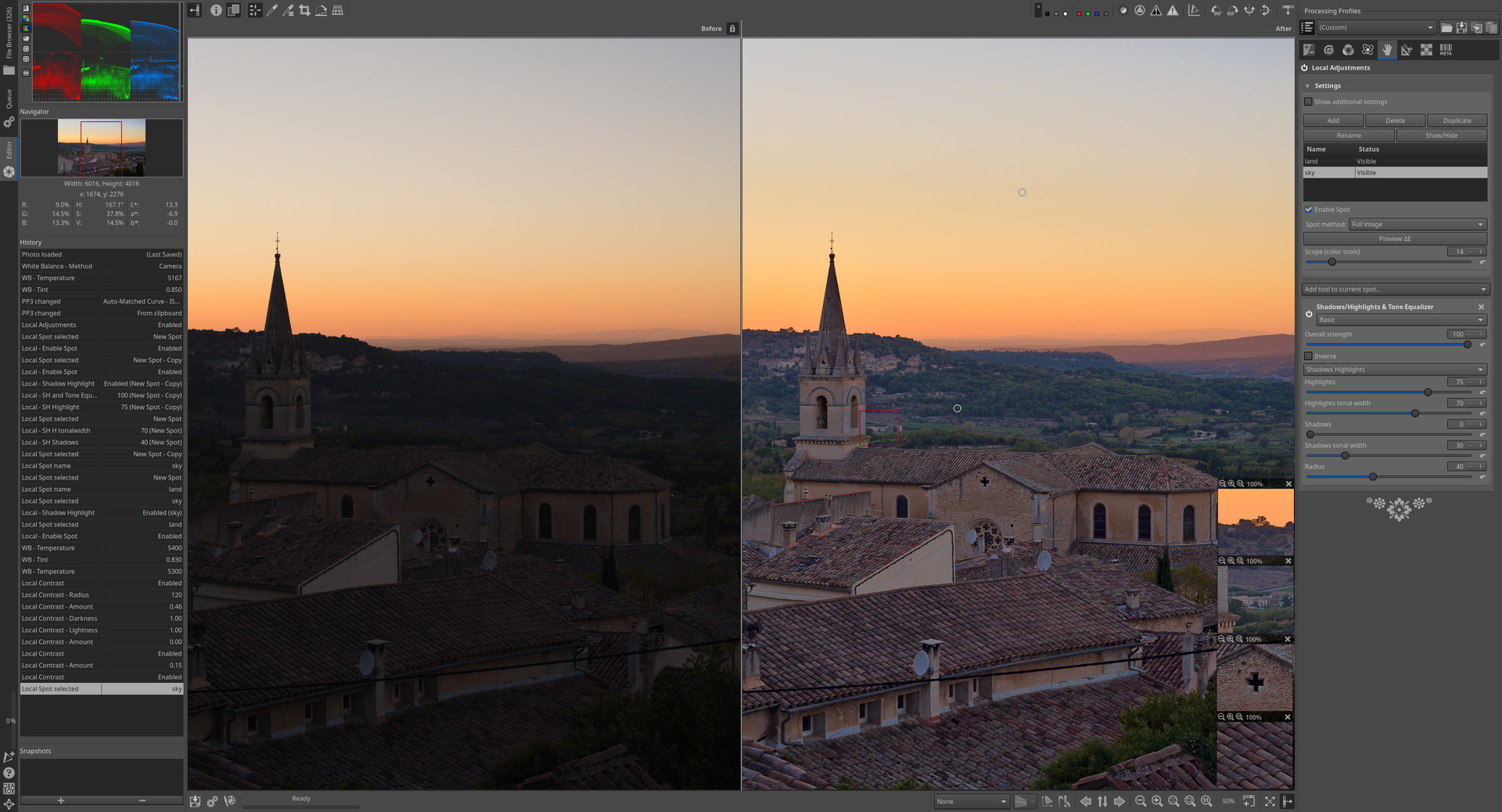
Official RawTherapee website screenshot showing a before-and-after view and local adjustments. Image courtesy of the RawTherapee project; illustrative, not a benchmark from this comparison. The cover uses this same image.
7. Krita: choose it when the photo becomes a painting
Krita belongs here with a clear label: it is primarily a digital-painting application. Its brushes, layer tools and artist-focused workflow make sense when you want to paint over a photograph, build an illustration or combine drawing with image elements.
I would not make it the default recommendation for someone whose whole request is "make this camera photo look better." That person should begin with a photo editor or RAW developer. But if the next step involves a pen tablet and drawing, Krita is much more relevant than a photography catalogue.
The official desktop download is free and open source. Optional paid store versions support the project; do not mistake a store price for a requirement to pay for the free download.
8. digiKam: when finding the photo is half the job
digiKam is the collection-first choice. It brings photo organisation together with an image editor and batch-processing tools. If your folders have become a second job, that combination may be more useful than adding another stand-alone editor.
Its official feature documentation covers tagging, searching, comparing images, editing and batch queues. I would consider it when you need to sort and work through a collection, then send selected images into a more specialised workflow when necessary.
For a single crop, it is more app than you need. For a large collection, test a small representative folder first and learn how its database and metadata settings fit your backup plan. Free software still deserves a careful introduction to your only copy of the family photos.
Which one should you install first?
Everyday JPEGs, text and layers: Paint.NET.
Detailed retouching or composites: GIMP.
No installation: PhotoDemon.
Simple editing across operating systems: Pinta.
RAW development plus a catalogue: darktable.
Detailed RAW processing: RawTherapee.
Painting and illustration: Krita.
A photo collection that needs organisation: digiKam.
You do not need all eight. Pick the one that fits your next job, keep an untouched original and save an editable project before exporting a flattened image for sharing. A second specialised tool can come later.
Frequently asked questions
What is the best free photo editor for beginners on Windows 11?
My starting recommendation is Paint.NET for a Windows-only workflow, or Pinta if you want a simpler editor available on several operating systems. GIMP is the better next step when you need more detailed editing control.
Are these free versions trials?
No time-limited trials are included. Paint.NET and Krita have optional paid store editions, while free downloads are available through their official projects. Use the official download route and check that you have selected the intended edition.
Which free editor should I use for RAW camera files?
Start with darktable or RawTherapee. Both are dedicated RAW-processing options. Check support for your specific camera model and file type, and try a representative file before committing to a workflow.
Can I edit without uploading photos to an online service?
These are desktop applications, rather than browser-only editors. PhotoDemon explicitly states that editing needs no internet connection. Features that download extras or share files are separate choices; check those before enabling them.
Will a free editor open a Photoshop PSD perfectly?
Do not assume perfect round-tripping. Some editors can open PSD files, but application-specific effects and project structures can behave differently. Work on a copy, inspect it and keep the original PSD.
Should I use a RAW developer or a layer-based editor?
Use a RAW developer for exposure, colour and camera-file development. Use a layer-based editor for text, compositing and detailed pixel changes. They solve different parts of the job and can be used together.
Sources and download notes
Official documentation checked for this selection: Paint.NET overview and download requirements; GIMP; PhotoDemon; Pinta; darktable features; RawTherapee; Krita features; and digiKam features. Download terms and system requirements can change. Use the linked catalogue pages to reach the official developer, not a repackaged installer.