HandBrake: Make Big Videos Easier to Share
- Video
- Compression
- Open source

A video can be perfectly ordinary right up until you try to send it. Then the upload estimate starts measuring your patience, the attachment limit refuses to negotiate, and a two-minute clip suddenly feels like a shipping problem.
HandBrake is a free, open-source video transcoder for Windows, Mac and Linux. It takes a video you already have and makes another version. The useful goal is a file that plays where you need it and takes a sensible amount of space, rather than winning a competition for the smallest possible number.
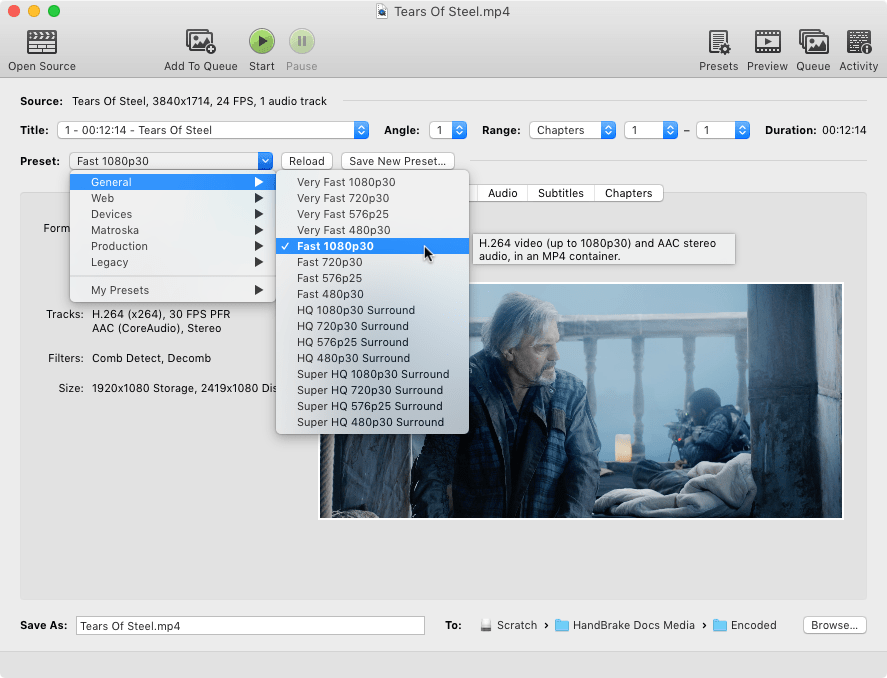
Real HandBrake screenshots from the official documentation: macOS interface, image set labelled 1.1.0 (not the current release). Cover: source loaded; above: preset menu. Images unchanged. Credit: HandBrake Team / Bradley Sepos; video frame: Tears of Steel, (CC) Blender Foundation | mango.blender.org, CC BY 3.0. Cover source, preset screenshot source and CC BY-SA 4.0 license.
Conversion, not a video-editing project
HandBrake produces MP4, MKV or WebM output from supported sources. It can resize and crop video, work with audio tracks and handle subtitles. That gives it plenty to do without pretending to be a full timeline editor.
It does not join several clips into a finished movie, and it does not pass the video through unchanged. The video is converted. That matters if you are hoping to make a smaller file with literally no change in quality: a lossy encode involves a trade-off.
Use material you own or have permission to process. HandBrake does not remove copy protection, and a streaming subscription is not an invitation to feed protected downloads into a converter. For a phone recording or your own screen capture, the question is usually much simpler: which output will be useful?
Let a preset do the first round
Open the source and choose a suitable built-in preset. Think about where the result will play before touching advanced controls. A computer, an older television and a phone may not support the same combinations of container, codec and resolution.
A preset is a starting point, not an instruction to stop checking. Confirm the destination filename and folder so the original remains clearly separate. Give the output a useful name rather than creating another mysterious file called “video-final2”.
Check the dimensions and any cropping too. Automatic choices may be sensible for one clip and wrong for another. If the recording has important information near an edge, make sure the output will keep it. Saving space is less impressive when the missing space contained someone's presentation title.
Quality is a trade-off you can see
Most official presets use constant quality. HandBrake's guide recommends it unless you have a specific reason to use another approach. You choose a quality target; the resulting file size depends on the source and encoding settings.
That means you should not promise a particular size reduction before trying the material. A quiet talking-head recording and noisy, fast-moving footage give an encoder very different jobs. Changing the codec can also change compatibility and encoding time.
Be careful with quality numbers copied from random guides. HandBrake explains that scales are not directly comparable across encoders. Even the direction of the numeric scale can differ. Start from the chosen preset and make small changes instead of assuming one universal number unlocks perfect video.
Preview before committing the afternoon
The Preview feature can encode a short part of the source. Choose a section with movement, small text or other detail that is likely to reveal problems. A static opening slide is a wonderfully easy test for an encoder and a rather unhelpful test for you.
Watch the result at a realistic display size. Check faces, edges, motion and text. Listen to the audio. If the output needs subtitles or a particular language track, verify those as well; picture quality is only one part of a usable file.
When the preview looks right, encode the complete video and inspect the finished result. Do not delete the source because the progress bar reached the end. Open the output, seek through it and try it on the intended device before treating the job as finished.
A practical tool, not a miracle shrink ray
HandBrake suits people who regularly produce large recordings or need a more compatible copy of an existing video. It is less useful when the actual task is editing a story, assembling clips or preserving the original video stream unchanged.
My preferred approach is deliberately unexciting: preset, short preview, full encode, final check. Keep the source until the smaller copy has proved itself. That is a much better evening than compressing everything first and discovering tomorrow that the subtitles never made the trip.
The official overview, quality guide and preview instructions explain the current workflow.