Audacity: Clean Up a Voice Recording
- Audio
- Recording
- Open source
The recording is finished. The explanation is clear, the microphone was on, and the background fan has apparently applied for a co-hosting role. Before recording everything again, it is worth checking what a careful edit can improve.
Audacity is a free, open-source audio editor for recording, trimming and processing sound. For a spoken tutorial, interview excerpt or voice track, its most useful tools are often the unglamorous ones: remove the dead space, make sensible edits and reduce a little steady noise without turning the speaker into a robot.
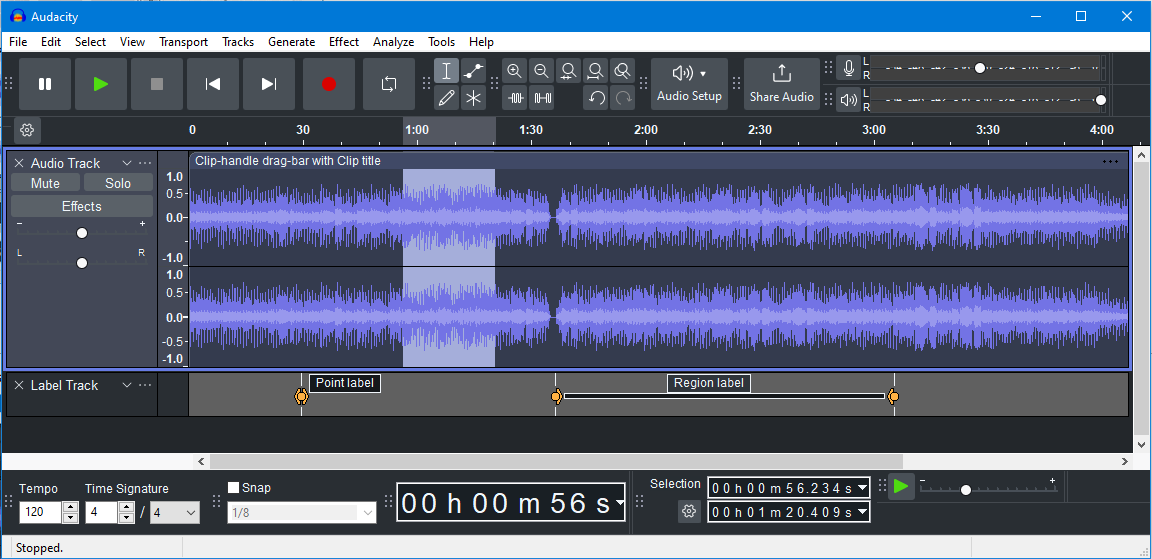
Audacity 3.6 in the dark theme, with a recorded waveform ready for cleanup. Source: Audacity manual.
Keep a way back
Open or record the audio, save an Audacity project and preserve the original recording separately. The official basic workflow recommends an immediate safety export of a new recording before editing. That is good advice when the performance would be difficult to repeat.
A project preserves the editing work; an exported audio file is what you usually play or send elsewhere. Keep that distinction in mind from the beginning. Renaming a project with an MP3-looking filename does not turn it into a finished MP3.
Use clear names for the original, working project and final export. It is a small habit that prevents a surprisingly large amount of confusion when you return to an edit next week.
Trim the obvious parts first
Listen from the beginning and remove the unnecessary lead-in and ending. Then tackle mistakes or long pauses that interrupt the point. Zoom in enough to see what you are selecting, but use playback to decide whether the cut actually sounds natural.
A waveform is useful evidence of sound, not a transcript of meaning. Two similar-looking peaks can contain very different words. Listen around each edit rather than selecting everything that looks untidy and hoping the sentence survives.
Leave breathing room. A voice recording does not improve automatically when every pause disappears. The target is an explanation someone can follow, not proof that the speaker has defeated the biological need to inhale.
Noise reduction has a specific job
Audacity's Noise Reduction effect is designed for steady background noise such as hiss, hum or air conditioning. The current manual describes a two-pass process: first capture a noise profile, then apply reduction to the audio you want to clean.
Select a stretch containing only the unwanted noise for the profile. If your selection includes speech, the effect may learn part of the voice as something to remove. After taking the profile, select the relevant audio and try a modest amount of reduction.
Compare the result with the original. Too much reduction can produce metallic or watery artefacts, and a small amount of remaining background noise may sound more natural. The manual's noise-only output can help check what would be removed; if recognizable speech is there, the settings are too aggressive.
Fix recording problems at the source when possible
A slammed door, overlapping voices and a constant fan are not the same problem. Noise Reduction is not a universal eraser for anything you dislike. Its guide specifically says it will not remove one-off sounds such as a door slam.
Likewise, turning up a quiet recording cannot restore detail that was never captured properly, and lowering a distorted recording does not undo the original overload. For new recordings, check input levels and microphone placement before relying on repair afterwards.
Make a short test and listen to it through headphones. A quieter room or a slightly better microphone position may do more than several rounds of processing. Software is useful, but moving away from the noisy fan remains an impressively low-latency effect.
Export the version people will hear
When the edit is ready, export an audio file in a format appropriate to its destination. WAV can serve as a high-quality working or archive copy; MP3 can be practical for smaller distribution files, with lossy compression as the trade-off.
Open the export in a normal player and listen to the beginning, a few edited sections and the ending. Check that the expected audio is present and that you did not export the wrong selection. Keep the project if you may need to revise the work.
Audacity is a good fit for people who want hands-on control over audio rather than a single mysterious “improve” button. Start with a clean edit and gentle processing. The basic recording guide and Noise Reduction manual explain the workflow and its limits.