Cryptomator: Encrypt Files Before They Reach the Cloud
- Cryptomator
- Privacy
- Encryption
Cloud storage solves the problem of reaching your files from another computer. It does not automatically solve the question of who else can read them. Cryptomator adds a useful layer between a normal folder and a cloud service: encrypt the files on your device before the encrypted versions are synchronised.
The desktop app is free and open source for Windows, macOS and Linux. Its core encryption features do not need a subscription. Mobile access has a different model: the free iOS and Android versions are read-only, while writing requires a paid upgrade. That distinction matters if the plan involves editing documents on a phone as well as a laptop.
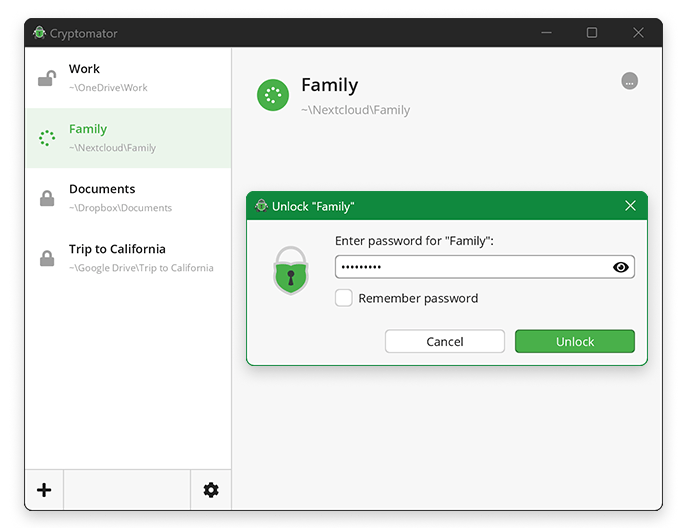
Official Cryptomator screenshot: unlock a vault to access its files. Source: cryptomator.
A vault inside a familiar folder
Cryptomator calls its encrypted collection a vault. You create one in a storage location, protect it with a password, then unlock it to access a virtual drive. Working with files through that unlocked view is the familiar part. Cryptomator handles the encryption before the stored files are passed to the cloud provider's normal synchronisation process.
It does not provide the cloud storage itself. You still need somewhere to keep the encrypted files and a working way to synchronise them. That separation is useful: the encryption layer is not tied to replacing your whole storage arrangement. But it also means there are two systems to understand, not one magic box that makes every storage problem disappear.
Start with copies, not your only archive
Make a small trial vault with unimportant copies of a few files. Unlock it, open a document, close the document and lock the vault. Then confirm that the cloud client has finished syncing before trying access from another device. Learn the routine before moving a large archive or relying on it during travel.
Keep the vault password somewhere safe and understand the project's recovery options. A strong encryption tool is doing its job when a forgotten password is not casually bypassed. It is worth thinking about recovery while everything is working, rather than after your only record of an important detail has become a beautifully encrypted problem.
What is hidden, and what is not
The official security target says Cryptomator encrypts file contents and file and folder names, while obscuring the directory structure. It also states what remains visible for synchronisation: file sizes, timestamps and counts are not all concealed. Someone may be unable to read the contents without being unable to learn anything about the stored collection.
That is a much more useful description than saying the cloud can learn absolutely nothing. Choose the tool for its actual protection: client-side encryption of the files and names. If your threat model requires hiding all storage metadata or hiding the existence of encrypted data, read the security documentation before deciding this is sufficient.
An unlocked computer is still an unlocked computer
Cryptomator's documentation is clear that it cannot protect files from malware reading them on an infected computer while a vault is unlocked. Applications can also leave temporary or backup copies outside the encrypted view. Encryption at rest does not disinfect a PC or prevent an editor from creating its own extra file.
Likewise, encryption is not backup. A synchronisation mistake, damaged storage or deleted vault still needs a recovery plan. Keep independent backups and check that the material needed to restore them is available. The right password is not much comfort if there are no remaining files to unlock.
Who is it for?
Cryptomator makes sense for someone who wants the convenience of an existing cloud folder while keeping control of file encryption. It is especially useful when the alternative would be uploading ordinary documents and simply hoping that every other layer remains perfect. It is less useful if you expect it to solve device security, access management and backup without further thought.
Begin on desktop, where the functional encryption features are free, and confirm your exact mobile needs before paying for an upgrade. Keep the workflow small enough to understand: unlock, work, close documents, lock, verify sync. The appeal is not becoming invisible. It is giving a familiar cloud folder a lock whose key stays with you.
Software details and downloads: https://freewares.org/software/cryptomator
Desktop and mobile edition limits: https://cryptomator.org/downloads/
Security scope and remaining metadata: https://docs.cryptomator.org/security/security-target/