digiKam: Find the Photos Your Folders Forgot
- digiKam
- Photos
- Open Source
There is always one photo you can picture perfectly and cannot find. The red coat, the beach, somebody holding a cake. Unfortunately, the filename is IMG_7842 and the folder is called Camera backup old FINAL. At this point the computer is technically storing memories and practically hiding evidence.
digiKam is the sort of application I like for this problem: a proper photo organiser rather than another reason to buy cloud storage. It is free, open source and available for Windows, macOS and Linux. The interesting part is not how many buttons it has. It is whether those buttons can help you find a photograph six months after you last remembered where it was.
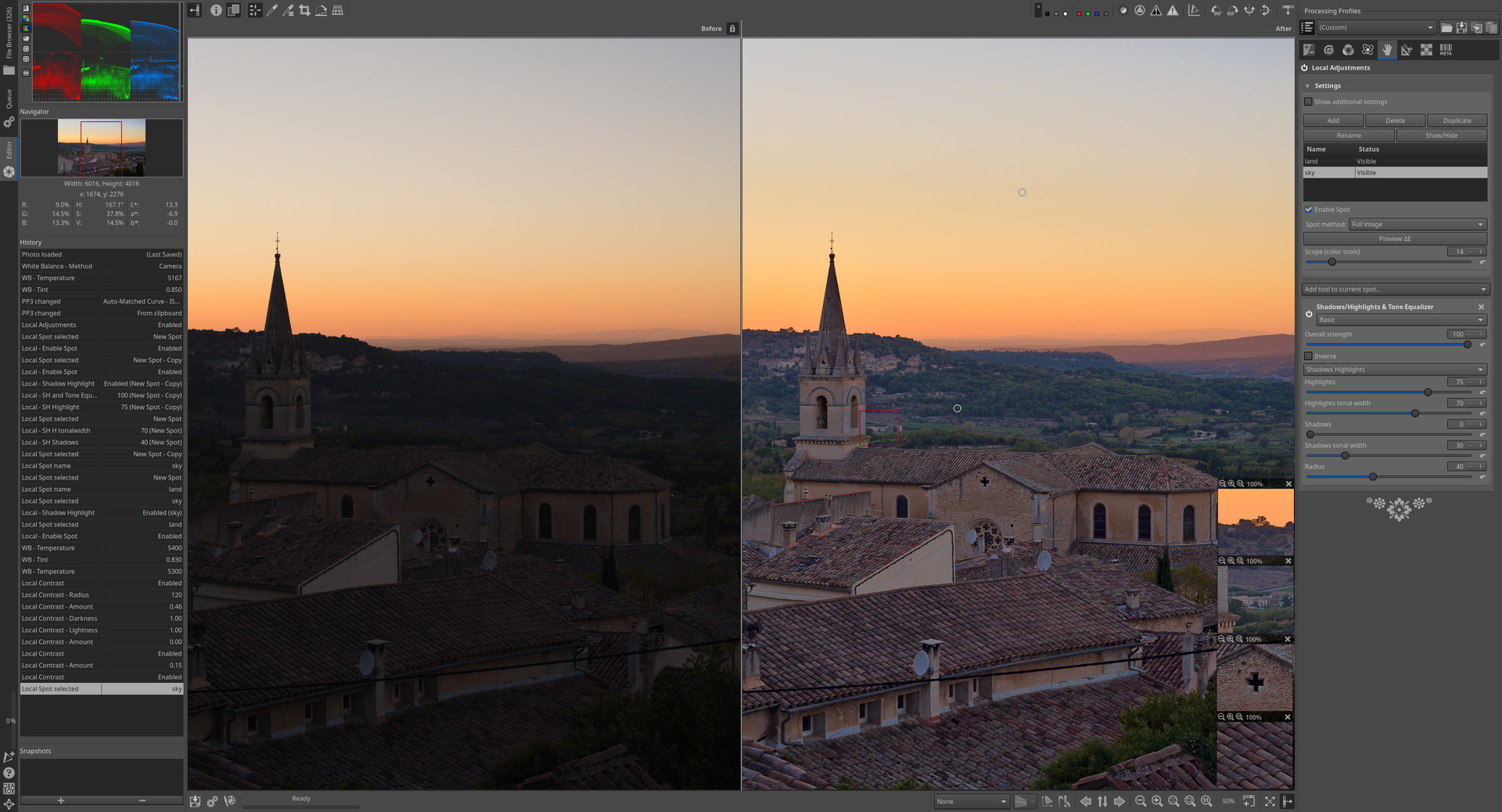
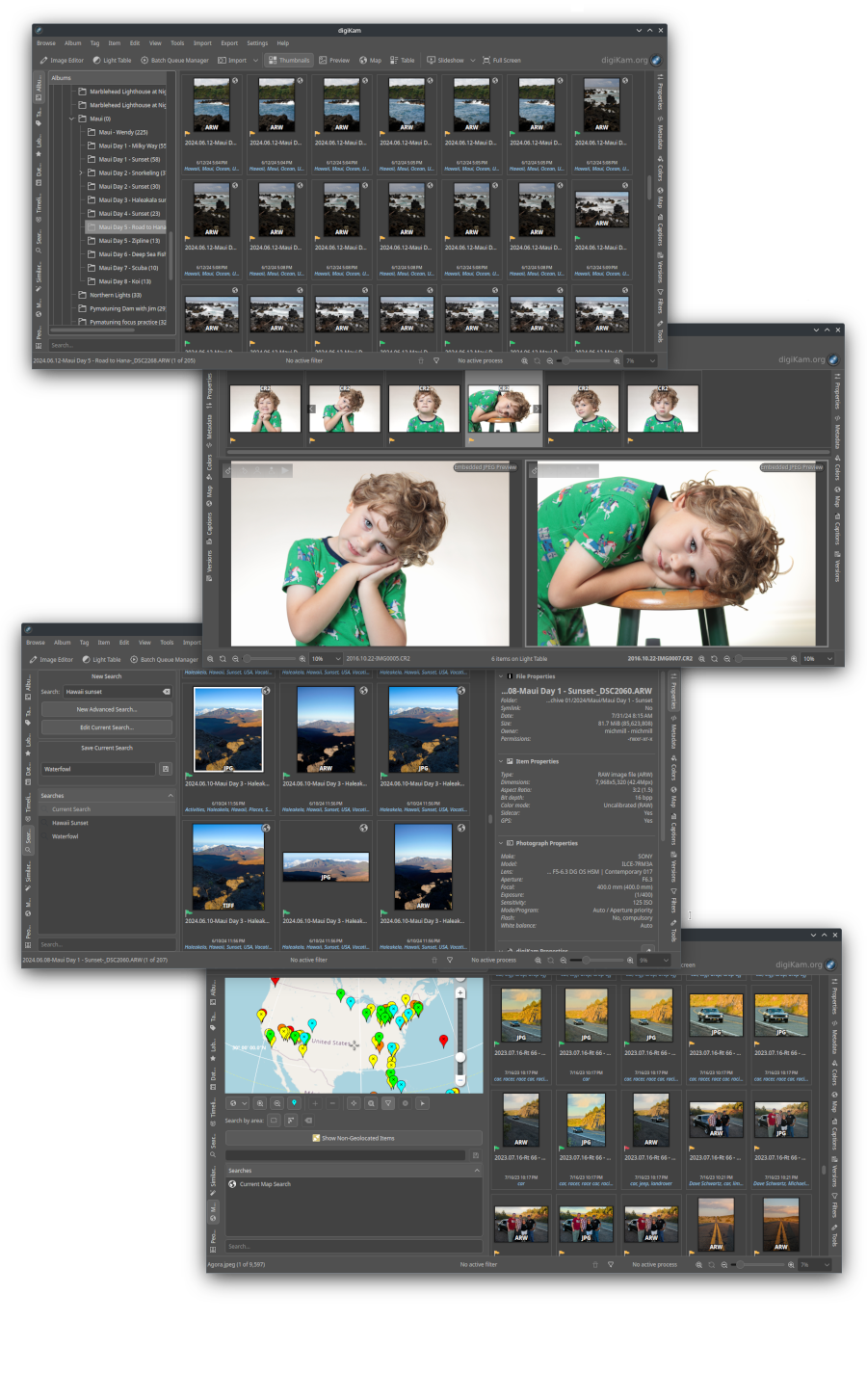
Official digiKam interface overview, showing several photo-management views. Source: digikam.
Give one messy folder a small job
Picture a collection made from two phones and an old camera. Dates are useful, but not enough: the birthday photographs are mixed with receipts, screenshots and twelve attempts at photographing the same cat. I would start with one copied folder, not invite the entire family archive to the first meeting.
digiKam works with collections whose root folders can sit on local drives, removable media or mounted network shares. Within them, folders become albums. That distinction is handy: you can keep a storage arrangement you understand while adding another way to browse it. A disconnected external drive is still disconnected, though. A catalogue does not make missing hardware reappear.
Start by browsing that one album and picking a handful of photographs worth finding again. Give them a useful tag and a rating. Then try retrieving them through those choices. This is a more convincing introduction than spending an evening designing a classification system nobody will maintain, including you.
Tags are where folders stop arguing
A photograph can belong to a holiday, include your sister and show the dog doing something ridiculous. A folder tree wants one address. Tags can describe several things at once. That is the appeal: stop forcing every memory to choose which branch of the filing cabinet it loves most.
Use a small vocabulary. Family names, a few events and broad subjects are enough to begin. Ratings can separate favourites from the merely acceptable, while captions add details that the camera could not know. Search and filtering then have something more useful to work with than a sequence number.
I would resist tagging every object visible in every photograph. Unless someone is paying you to catalogue garden furniture, the chair can remain anonymous. The point is faster retrieval, not a second unpaid job.
Faces need a human in the loop
digiKam also detects faces and can suggest who they belong to after you label examples. Detection finds a face region; recognition tries to match a person. Those are different steps, and neither should be confused with certainty.
The manual describes suggestions going into an Unconfirmed section, where you can confirm or reject them. That review is part of the workflow, not an optional apology for the software. Start with a limited album, label a few clear examples and check the suggestions before extending the scan. Models may need downloading during setup, and a large scan can take time.
This is useful when dates fail you: perhaps you remember who attended a gathering but not the year. It is less useful if you expect every blurred profile and childhood photograph to identify itself perfectly. Even relatives occasionally get that wrong.
Decide where the organisation lives
digiKam keeps databases for its catalogue and related information. It can also read and write supported metadata, including tags, captions and ratings, in image files or XMP sidecars according to your settings. Before applying changes widely, check those settings and try them on copies.
This matters when moving to another program or sharing a photograph. Organising information can outlive the application, but personal names, face regions and location details may also travel with exported or shared files. Review what you are sending. Back up the photographs and the catalogue information you depend on; thumbnails are not replacement originals.
A library you can actually revisit
There is an image editor and more advanced machinery here, but I would leave that for a real need. The first success is much smaller: finding the cake photograph without opening thirty folders. One album, a few tags, reviewed face suggestions and a backup make a sensible beginning.
If your archive has outgrown ordinary folder browsing, digiKam gives it another route in. It will not supply the missing names or decide which family photograph matters. It can, however, stop a perfectly good memory from disappearing behind IMG_7842.
Software details and downloads: https://freewares.org/software/digikam
Official project: https://www.digikam.org/
Face detection and review: https://docs.digikam.org/en/left_sidebar/people_view.html
Metadata settings: https://docs.digikam.org/en/setup_application/metadata_settings.html