Ditto: Stop Losing What You Copied
- Ditto
- Windows
- Productivity
Copy an address, copy a tracking number, then realise the address has vanished. The clipboard is very good at remembering the last thing and spectacularly uninterested in the thing before it. Ditto gives that tiny working space a memory.
This free, open-source Windows clipboard manager keeps copied items in a local database so you can retrieve them later. Text is the obvious use, but the project also supports images, HTML and other clipboard formats. That makes it more useful than a list of recently typed sentences, and more sensitive than one too.
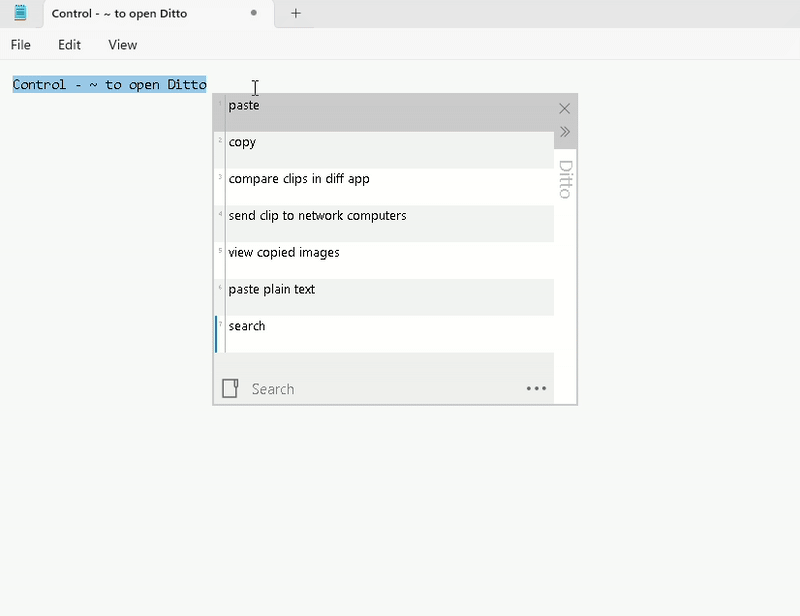
Still from the official Ditto demonstration, showing the clipboard history. Source: ditto.
A second chance for copied information
The basic routine is simple: run Ditto, copy a few harmless items, then open its window from the system tray or with its hotkey. The documented default is Ctrl plus the backquote key. Select an entry and press Enter, or double-click it, to paste it into the previous window. That last detail matters: check which application has the target field before sending anything back.
Imagine preparing a reply that needs a reference number, a short quotation and a web address. Instead of bouncing between the source and the message three times, collect the pieces, then retrieve them as needed. It is a modest improvement, but those are often the utilities that remain useful after the novelty wears off. No animated productivity mascot required.
Start with an unimportant paragraph
For a first run, open a text editor and copy three different lines. Bring up Ditto and paste the oldest one into a blank document. Then try a formatted selection from a page and compare an ordinary paste with a plain-text paste. Ditto's documented keyboard shortcuts include Shift+Enter for plain text, which is handy when a copied sentence arrives wearing an entire website's typography.
The point of this little exercise is not to benchmark the application. It is to understand where clips go, how selection works and how to remove something you did not intend to keep. Learn those controls while the history contains a shopping list, not an account recovery message.
Local history still needs boundaries
The project's README describes Ditto as local-first, with no login, cloud or telemetry. That is a useful starting point, but local is not the same as consequence-free. A clipboard manager makes temporary information persistent. Anything you copy while it is capturing may become part of a database on the computer.
Decide how much history you want to retain, learn the deletion controls, and review the application's options before settling into daily use. On a shared or work-managed PC, check whether retaining copied material is appropriate at all. A useful tool at home can be the wrong choice for a workstation handling other people's confidential records.
Passwords do not belong in a scrapbook
Be especially cautious with passwords, private keys, one-time codes and personal records. Do not assume a clipboard manager will identify every sensitive item or that a password manager's clipboard timeout automatically removes every copy elsewhere. Those are different applications with different responsibilities.
Ditto is not a password vault, and a long clipboard history should not become a secret collection by accident. If your work frequently involves copying sensitive information, pause capture when appropriate, clear retained clips, and consider whether the convenience is worth the extra stored data. Keeping history smaller also makes finding the useful bits less like excavating a drawer full of cables.
Who should give it a look?
Ditto makes sense for people who assemble information from several places: support replies, research notes, forms or repetitive admin work. It is less compelling if you rarely need anything beyond your latest copied item. Windows already has clipboard features, so the question is whether Ditto's retrieval and handling suit your habits better, not whether every PC must acquire another tray icon.
The download routes listed by the project include an installer, a portable build and package-manager options. Use the official project links rather than a repackaged download. Start with a small amount of harmless history, get comfortable with pasting and deleting, then decide whether it earns a permanent place. The clipboard can finally remember yesterday's sentence. It does not need to remember your entire life.
Download details and Windows information: https://freewares.org/software/ditto
Official project: https://github.com/sabrogden/Ditto
Usage and keyboard reference: https://github.com/sabrogden/Ditto/wiki