Stop Paying to Merge Two PDFs: Free Tools for Everyday PDF Jobs
Somewhere right now, a person is staring at a dialog box asking for a monthly subscription because they tried to merge two PDFs. Two. The files are already on their computer, the job takes four seconds, and the official tool wants auto-renewal with a cancellation flow designed by someone who has clearly never had to use it.
PDF is the most ordinary file format in the world, and somehow the most aggressively monetized. Adobe created the format in 1993 and, to be fair, released it as an open standard in 2008. Anyone can build tools for it, and plenty of people have. You do not need Acrobat for everyday PDF work, and you definitely do not need it to staple two documents together.
This guide covers the jobs people actually pay for without realizing the free option exists: reading, merging, splitting, compressing, OCR, signing and light editing. Every tool here is free, every one runs on your own machine, and your files never leave your hard drive. That last part matters more than any feature list.
First, a word about the "free PDF merge" websites
Search "merge pdf" and the first page is cheerful websites that do the job in your browser. Some of them are legitimate businesses, and for a boarding pass or a concert ticket they are fine.
Two catches. The free tiers come with daily or hourly limits designed to nudge you into a subscription, which is how a four-second job becomes a recurring charge. And the privacy math is bad for anything sensitive: your bank statement, your lease, your medical results go onto a stranger's server, and you are trusting their deletion promises. For anything you would not tape to a window, use a desktop tool. Everything below works fully offline.
Reading: Sumatra PDF
Before the editing jobs, the reader itself. Sumatra PDF is the anti-Acrobat: a tiny, open source Windows reader that opens files instantly, remembers where you stopped, and handles PDF, ePub, MOBI, DjVu, CHM and comic book archives in one program.
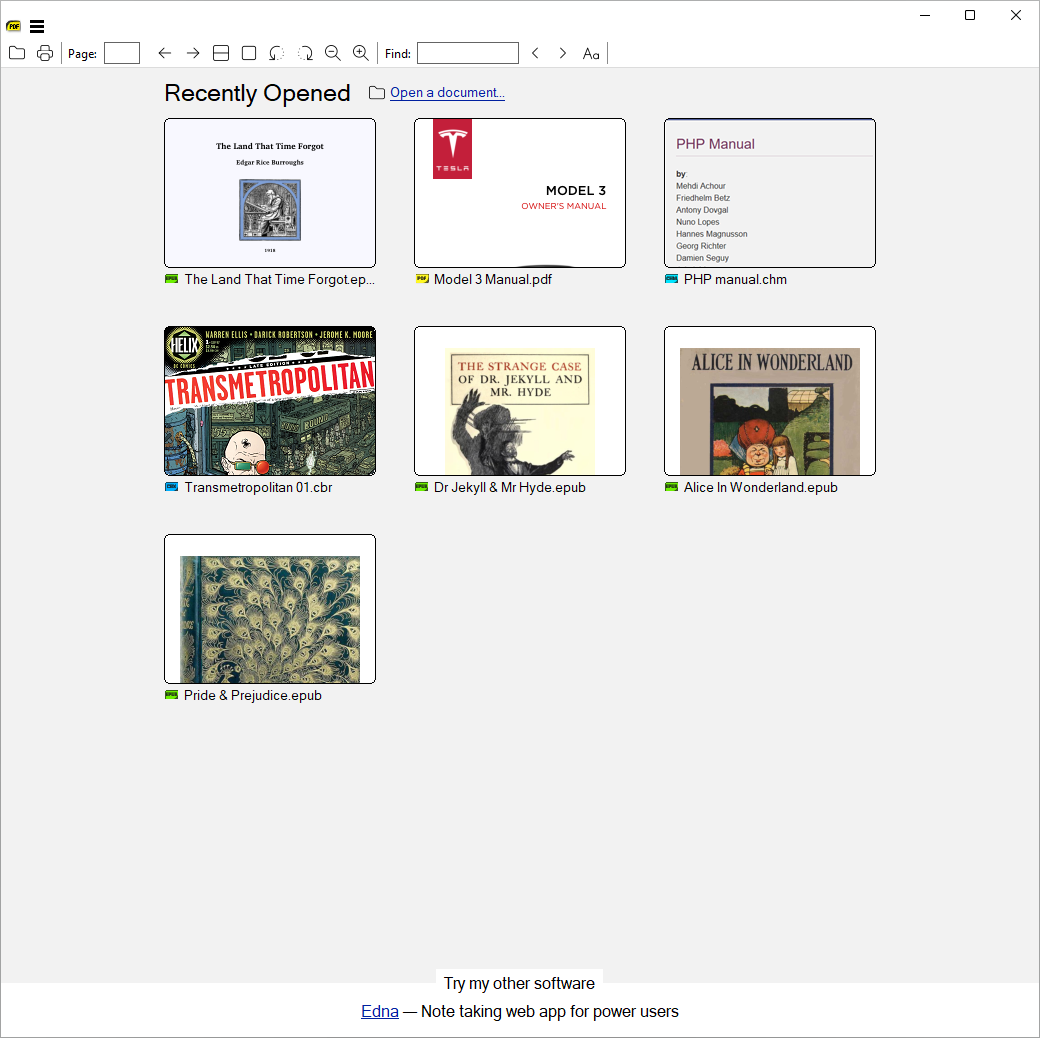
It has tabs, keyboard shortcuts for everything, and a total absence of pop-ups asking you to try premium features. What it does not have is any editing at all, and that is the point. Ninety percent of what most people do with a PDF is read it, and reading should not require a gigabyte of software that updates itself every other Tuesday.
Merging, splitting and reordering pages: NAPS2
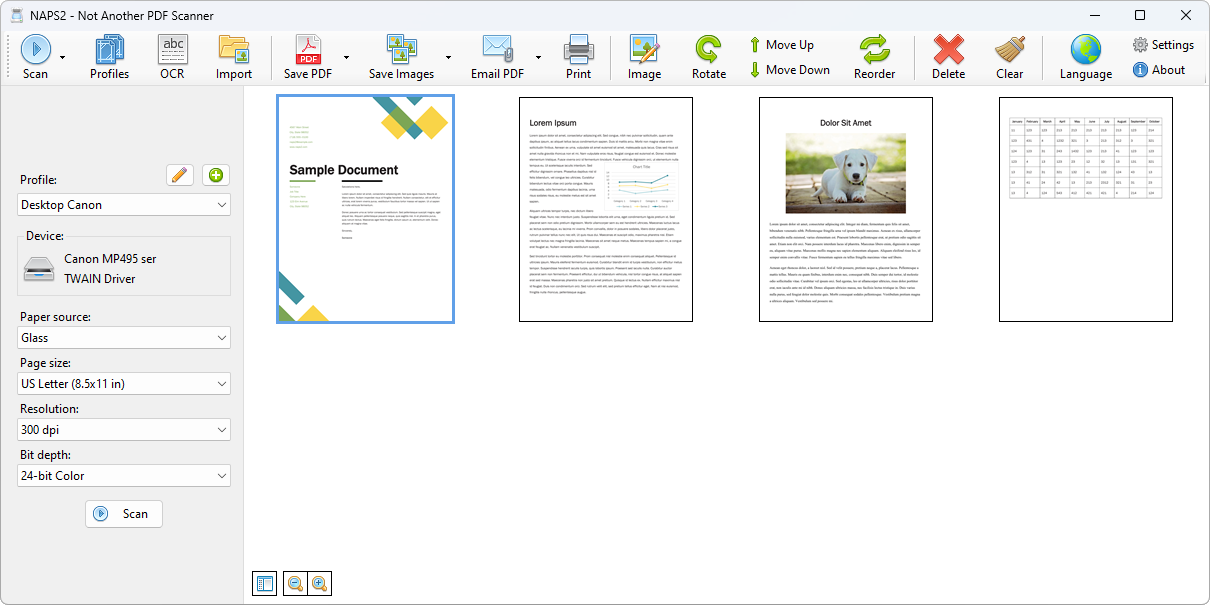
NAPS2 (Not Another PDF Scanner 2) is built for scanners, which is why almost nobody thinks of it as the best free PDF page manager. It is. Import one or more PDFs, import images if you like, then drag pages into whatever order you want, rotate the sideways ones, delete the blank pages the scanner always adds, and save the result as a single PDF. Merge complete, no watermark, no account, no upload.
Splitting is the same job in reverse. Need pages 4 to 9 of a long document as their own file? Import the PDF, delete everything except those pages, save as a new file. Extracting every page as a separate document works too, for the rare day that is actually the requirement.
It is free, open source, and runs on Windows, Mac and Linux. The honest limits: reordering, deleting and extracting pages keeps the original page content intact, but rotating, cropping or retouching a page re-renders it as an image (its text stays searchable only if you let OCR run), and interactive extras like fillable form fields and bookmarks are outside NAPS2's world. Work on copies, keep the originals, and the utilitarian interface will be your only real complaint.
Shrinking a PDF that is too big to email: Ghostscript
The 25 MB email attachment limit has ended more uploads than any security policy. The strongest free compressor is Ghostscript, the open source engine that quietly sits underneath half the PDF tools on the internet. One command does the job:
gswin64c -sDEVICE=pdfwrite -dPDFSETTINGS=/ebook -dNOPAUSE -dBATCH -sOutputFile=small.pdf big.pdf
The /ebook setting re-renders images at 150 dpi, which looks fine on screens and usually cuts the file size dramatically. Use /screen instead for 72 dpi when you need the smallest possible file and can accept visibly softer images.
If a PDF barely shrinks, that tells you something: text is already tiny, so a file that will not compress is mostly text, and the monster files are almost always images. Phone photos of documents, exported slide decks, scans saved at maximum DPI: that is what the /ebook setting fixes. When the file is a pile of scans, the smarter fix is upstream. Scan at 300 dpi instead of 1200, and let NAPS2 write a sensibly compressed PDF from the start.
The honest limits: Ghostscript is a command line tool with no preview, so you check the result yourself, and compression is lossy for image-heavy files. If a terminal window makes your hands sweat, LibreOffice can also export PDFs with compressed images from its export dialog, with a real interface around the same idea.
Making a scanned PDF searchable: OCR with NAPS2
A scanned PDF is a stack of photographs pretending to be a document. You cannot search it, copy from it, or highlight it, because there is no text in it, only pixels. OCR (optical character recognition) fixes that by adding an invisible text layer over the images.
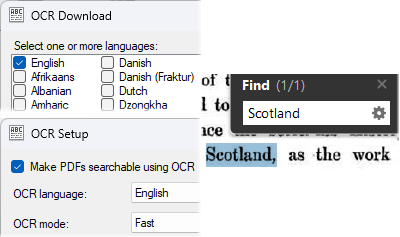
NAPS2 does this for free using Tesseract, the open source OCR engine, with language packs for more than a hundred languages. Scan or import the document, pick the language, and the saved PDF becomes searchable and copyable. The free version of PDF-XChange Editor includes a capable OCR feature too, so if you already use it as your reader, the option is built in.
Printed text from a clean scan comes out remarkably well. Handwriting is still mostly a lost cause, and even good OCR garbles the occasional name or number, so spot-check anything that goes into a form.
Signing without a printer: Xournal++
The ritual is absurd: print the form, sign it, scan it, email it back, throw the paper away. Xournal++ breaks the loop. It is a free, open source annotation app that opens a PDF and lets you draw or write directly on it, with a stylus if you have one and a mouse if you do not. Sign on the dotted line, export back to PDF, done in ninety seconds.
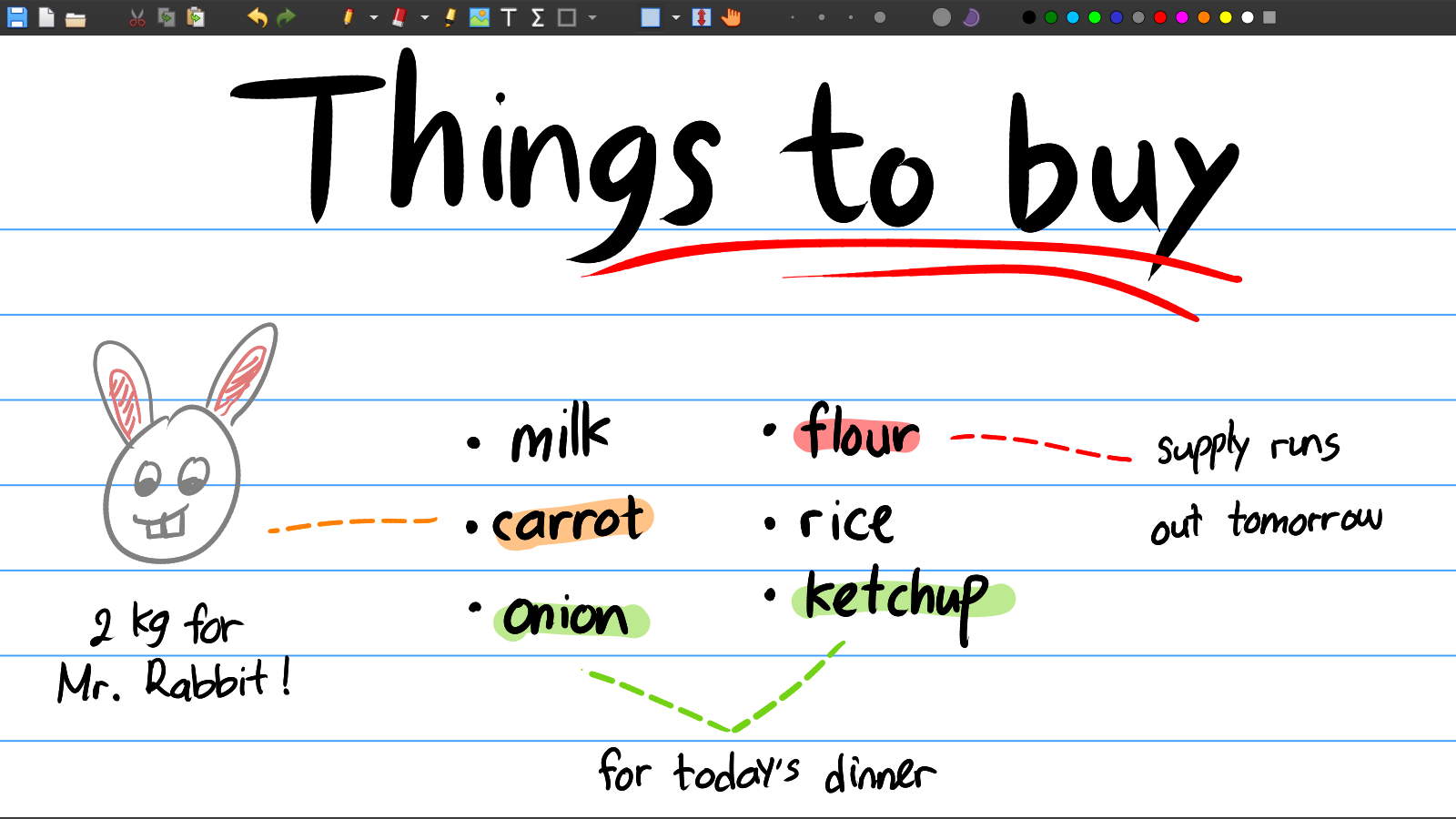
Lazy person's shortcut worth taking: sign once on white paper, photograph the signature, crop it, and keep the image. Xournal++ can stamp an image onto a document, so the tenth form of the day takes two clicks and the result looks identical to the first. Nobody has ever been able to tell, because there is nothing to tell.
It also handles typed notes, highlights and shapes, so it doubles as a markup tool for reviewing documents. One honest distinction: a drawn signature is a picture of your signature, not a cryptographic digital signature. For the overwhelming majority of "please sign and return" emails, the picture is what everyone expects and accepts. When a government portal or a bank demands a certificate-based signature, use their own process, because no drawing app substitutes for it.
Editing the actual text: LibreOffice Draw and PDF-XChange
A PDF was never meant to be edited. It is a printout that happens to be a file: the letters are placed, not flowing. That is why editing one feels like moving furniture in a photograph.
Within those limits, LibreOffice Draw (part of the free LibreOffice suite) opens a PDF and lets you move, delete and rewrite text blocks and images. Fixing a date, a price or a typo on a simple document works well. Complicated layouts with floating boxes and exotic fonts can shift around, so keep expectations modest and check the result before sending it anywhere. PDF-XChange Editor covers the reviewing side for free: comments, highlights, stamps and filling out forms, with the caveat that some of its advanced editing features stamp a watermark when used in the free version.
The one job to leave to the professionals: redaction
Here is a mistake that has embarrassed lawyers, companies and governments: drawing a black rectangle over text in an annotation app and calling it redacted. The text is still there, underneath the rectangle, selectable and copyable by anyone who opens the file. The black box is a sticker, not an eraser.
Real redaction removes the content from the file itself and rewrites the pages. If you ever need to black out something that genuinely matters, legal, medical or financial, do not improvise it with a drawing tool. Use software with a true redaction feature, and treat the copy-paste check as a sanity test rather than proof. When the stakes are high, let a professional handle it. This is the one area where the paid tools earn their price.
What Acrobat actually buys you
None of this means Acrobat is a scam. It means it is a professional tool sold to everyone. Preflight checks for commercial printing, fillable form creation, certificate signatures, Bates numbering, proper redaction: real features for people who process documents for a living. If you have never needed those words, you were never the audience. You were just the person who wanted to merge two PDFs.
The two-minute version
Read: Sumatra PDF
Merge, split, reorder: NAPS2
Compress: Ghostscript (or LibreOffice export)
OCR: NAPS2 or PDF-XChange Editor
Sign and annotate: Xournal++
Edit text: LibreOffice Draw or PDF-XChange Editor
Redact properly: dedicated tools, and verify afterwards
All free, all running on your own machine, none of them watching a daily quota. The next time a dialog box offers you a monthly plan to staple two files together, close the tab and open one of these instead.