Joplin: Keep Your Notes Close at Hand
- Notes
- Productivity
- Open source
A note-taking app should make it easier to recover a thought, not give you another place to lose it. Yet the humble shopping list can end up beside meeting notes, screenshots, half a recipe and a promising idea titled “new note”. The problem is not always a shortage of features.
Joplin is a free, open-source note and to-do application with an offline-first approach. Your notes live on your device, and synchronization is something you configure rather than the definition of the app itself. That is a useful starting point if you want notes available even when the connection is not.
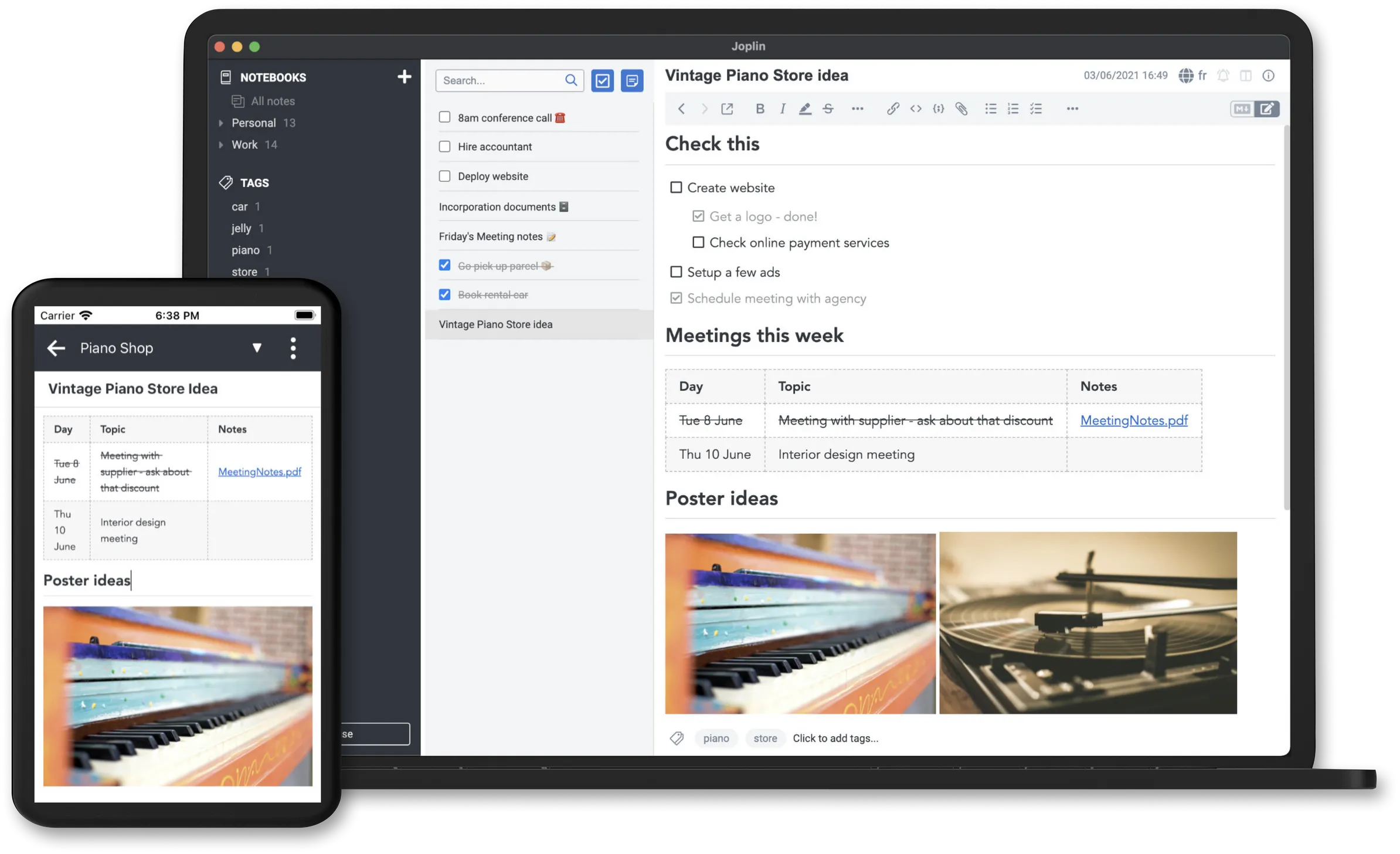
Joplin on the desktop: notebooks on the left, Markdown editor and preview side by side. Source: joplinapp.org.
A notebook does not need to become a system
Joplin organises notes into notebooks and supports tags and full-text search. You can keep a few broad notebooks for work, home and reference, then use descriptive titles to make individual notes easier to find.
The notes use Markdown, which gives you a way to structure headings, lists and links without treating every note as a page-layout project. Attachments and images can sit with the text, so a note can hold the useful context rather than merely pointing to another mysterious folder.
I would start with fewer notebooks than you think you need. If the first decision for every captured thought is which of twenty-seven categories deserves it, the filing system has started charging admission.
Try it offline before configuring anything else
Create a few real notes on one device. Search for a distinctive word, add a tag and check that you can find a note again without remembering its exact location. That is the core job, and it is worth testing before adding another service.
Offline-first means the data remains accessible on your computer or phone without an internet connection. It does not mean every linked web page or online resource is suddenly available offline too. A note containing a URL and a note containing saved content are different things.
For a first setup, keep important originals or exports elsewhere while you learn the application. Moving your only copy of a notebook collection is a poor way to discover which import choices you meant to make.
Sync is a choice, not a free-cloud promise
Joplin supports synchronization through services including Nextcloud, Dropbox, OneDrive and Joplin Cloud. The application being free does not make every possible storage service free. Check the provider's capacity, terms and price separately.
Choose one sync target and let the first device finish before introducing another. Syncing a large set of attachments can take longer than sending plain text. Watch the sync status rather than closing the app as soon as the configuration screen disappears.
Remember that synchronization and backup solve different problems. Sync makes changes available on other devices; it can also carry unwanted changes. Keep a separate backup or export routine for notes you cannot afford to lose.
Encryption needs a deliberate setup
Joplin supports end-to-end encryption, but the documentation says to enable it manually on one device first. The recommended route starts on a desktop or terminal application, then synchronizes the key and encrypted data to the other devices.
Do not enable it independently on several devices at once. The official instructions warn that this can create multiple keys when that was not your intention. Follow the documented sequence and allow synchronization to finish between steps.
Keep the encryption password safe. The guide says it cannot be recovered if forgotten. End-to-end encryption protects synchronized data against intermediaries; it does not prevent someone reading notes on an unlocked device. Screen locks and device security still belong in the plan.
Bring old notes over in manageable pieces
Joplin can import Evernote exports and Markdown files. That makes migration possible without manually copying every note, but “import supported” is not a guarantee that every unusual layout or attachment will look exactly as you expect.
Try a representative subset first: plain notes, a note with an image and something with formatting you care about. Check the result, then expand. A small, checked migration is much less stressful than importing a decade of notes and hoping the search box will sort out the aftermath.
Joplin suits people who want a capable notebook with local access and a choice of sync arrangements. Begin with writing and finding notes, then add the parts you need. Read the overview, sync guide and encryption instructions for the current details.