PDFCraft: Merge Two PDFs, Take One Page Out, Get On With It
Sometimes the whole PDF job is: put these two files together, then send someone page two. Not build a document workflow. Not start a subscription. Just finish the small job and get back to whatever created the paperwork.
PDFCraft is a browser-based collection of PDF tools that looks well suited to that sort of interruption. It is free to use without registration, and its source code is available under AGPL-3.0. I tried its merge and split tools with small, deliberately plain sample PDFs. Both produced the result I wanted, without asking me to create an account.
Two files in, three pages out
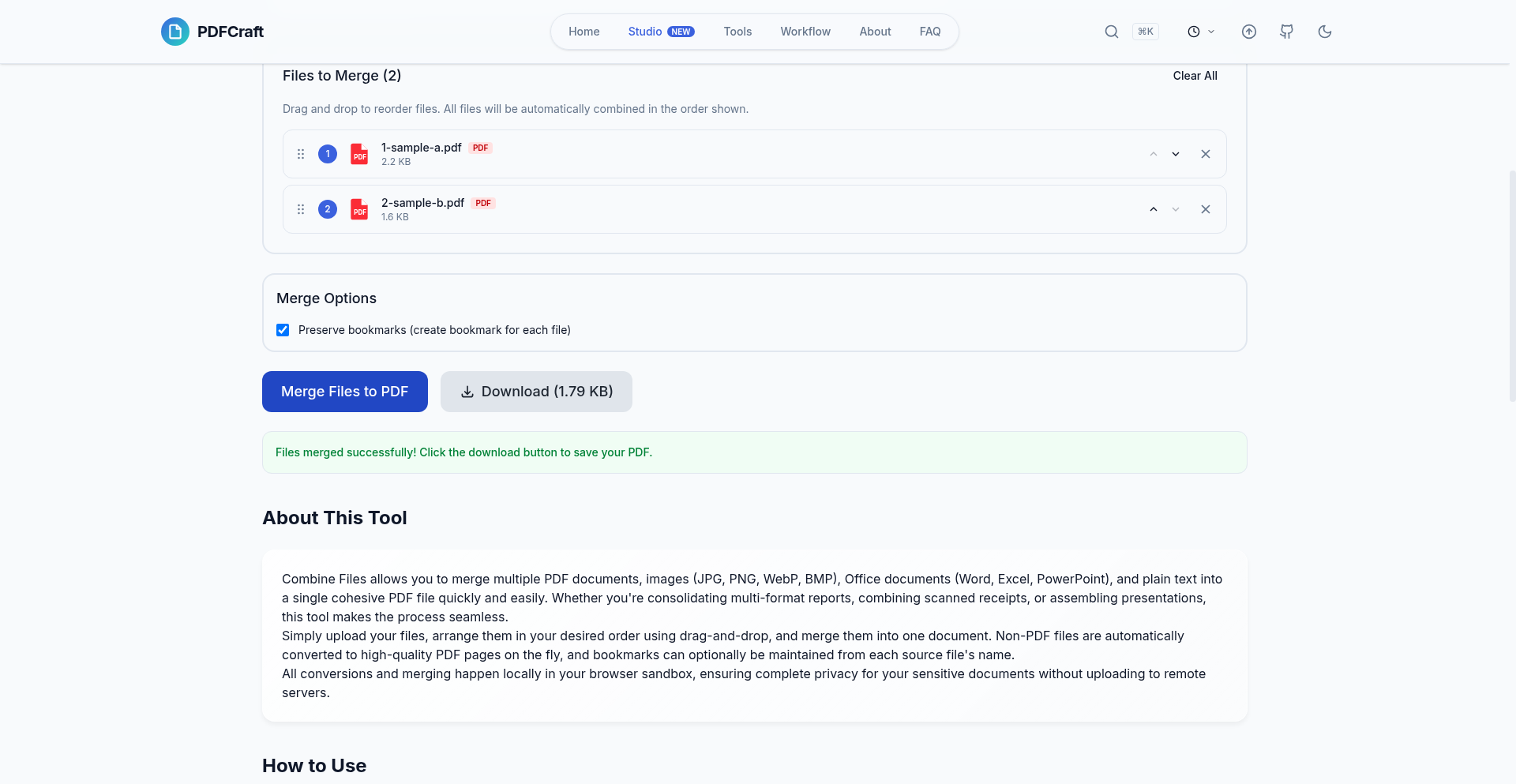
For the first check, I made a two-page PDF labelled ALPHA and BETA, plus a separate one-page PDF labelled GAMMA. These were synthetic documents containing no personal information. PDFCraft's merge screen accepted both files and showed them as an ordered list, with controls for moving each file up or down or removing it.
The screen uses the word "Upload", which can sound like the files are going to a server. PDFCraft says the processing actually happens inside the browser. More on that distinction below.
I left the files in ALPHA/BETA, then GAMMA order and ran the merge. The tool reported success and offered a PDF result. I checked the actual output, rather than stopping at the green message: it had three pages, in the expected order, and the labels and short text were readable on each page. The text was still extractable too.
That is a small test, but a useful one. A merge tool earns its place by keeping the boring details boring. Here, the page count, order and visible content all matched the input.
Our capture of PDFCraft after the merge, November 21, 2026. The actual result contained three pages in the expected order.
Then I took page two back out
Next, I opened that merged PDF in Split PDF. It recognised three pages and offered several approaches, including page ranges, even or odd pages, every page, visual selection and bookmarks.
I chose the page-range option and entered 2. PDFCraft produced one result labelled for page two. The resulting PDF really did contain one page, BETA, with its original text intact and readable. It did not hand me the whole document with an optimistic filename.
The split screen also showed page thumbnails, which makes it easier to check what a page number refers to before exporting. For a short document, that is enough interface. I do not need a dashboard to separate one page from three.
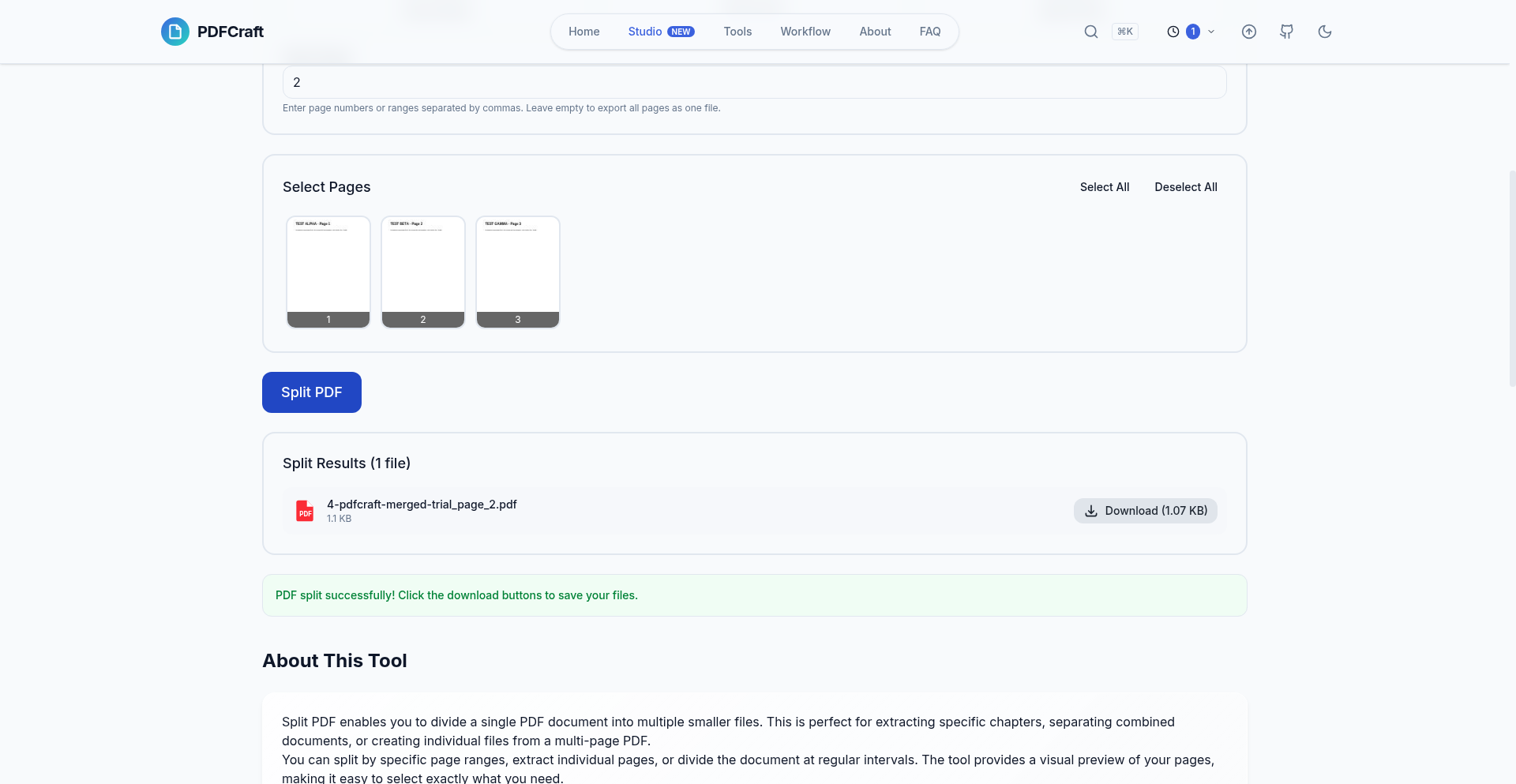
Our capture of PDFCraft after extracting page two, November 21, 2026. The result was checked as a one-page PDF containing BETA.
The privacy claim is about where the work happens
According to PDFCraft's privacy policy, PDF processing uses JavaScript and WebAssembly locally in the browser, and document contents are not sent to its servers. That is the project's stated design, not a network-security guarantee established by these two file tests.
The same policy says anonymous usage statistics may be collected, and local browser storage may remember preferences, recent tool history or work in progress. Local document processing does not mean the website makes no network connections or keeps no local state. On a shared computer, that is worth remembering before leaving a tab open and walking away.
A useful shortcut, with a sensible first step
The wider catalogue covers editing, conversion, compression and other PDF jobs, and there is a workflow editor that the repository labels as early development. I would begin with the standalone tool matching the job, rather than build a pipeline for something that takes two clicks.
For everyday merging and extracting pages, PDFCraft is worth bookmarking. These simple text documents came through correctly; that is a reason to try it, not proof that every complicated PDF will behave identically. Keep the originals and check the exported pages before sending them. For a document full of forms, signatures or unusual layout, that check matters much more than the size of the tool catalogue.
My favourite part is the lack of ceremony. Open the relevant tool, select the files, check the order or page range, and inspect the result. Sometimes that is all a PDF application needs to do.
Hands-on check: November 21, 2026, using synthetic text PDFs. Merge output: three pages in the expected order. Split output: the requested BETA page only. Images are our captures of PDFCraft during those checks; interface content belongs to the project.