QuickLook: Preview Files with a Tap of the Space Bar
- QuickLook
- Windows
- Productivity
A folder full of files named final, final2 and final-really-this-time is not a filing system. It is a guessing game with thumbnails. Opening each one in its proper application works, but so does reading a dictionary to find one spelling. There is a shorter route.
QuickLook brings the familiar Mac idea to Windows: select a file, press Space, see a preview. No need to launch the full application just to discover whether that PDF is the invoice or the instruction manual. It is free, open source, and built around a small interaction rather than another dashboard demanding attention.
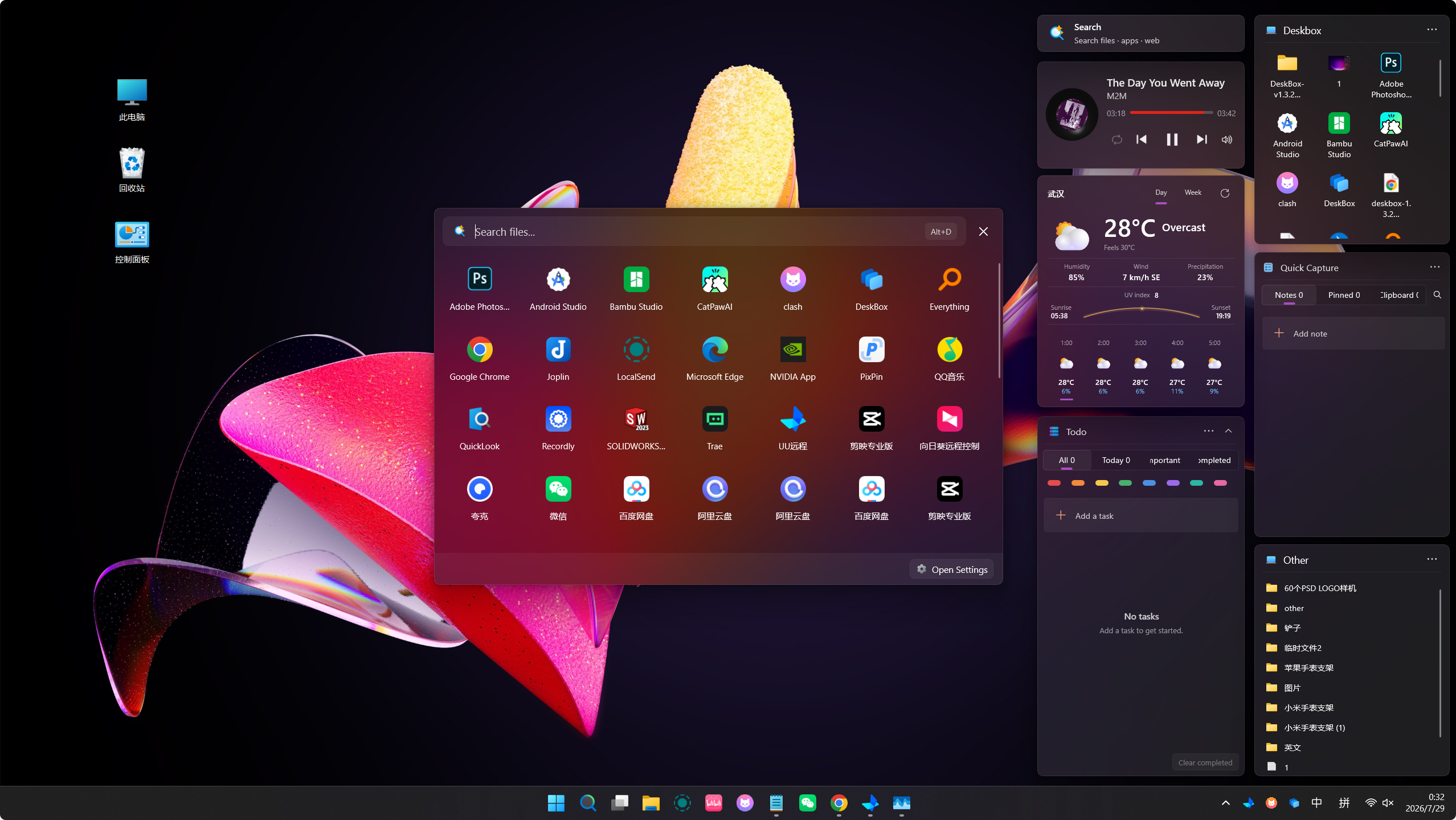
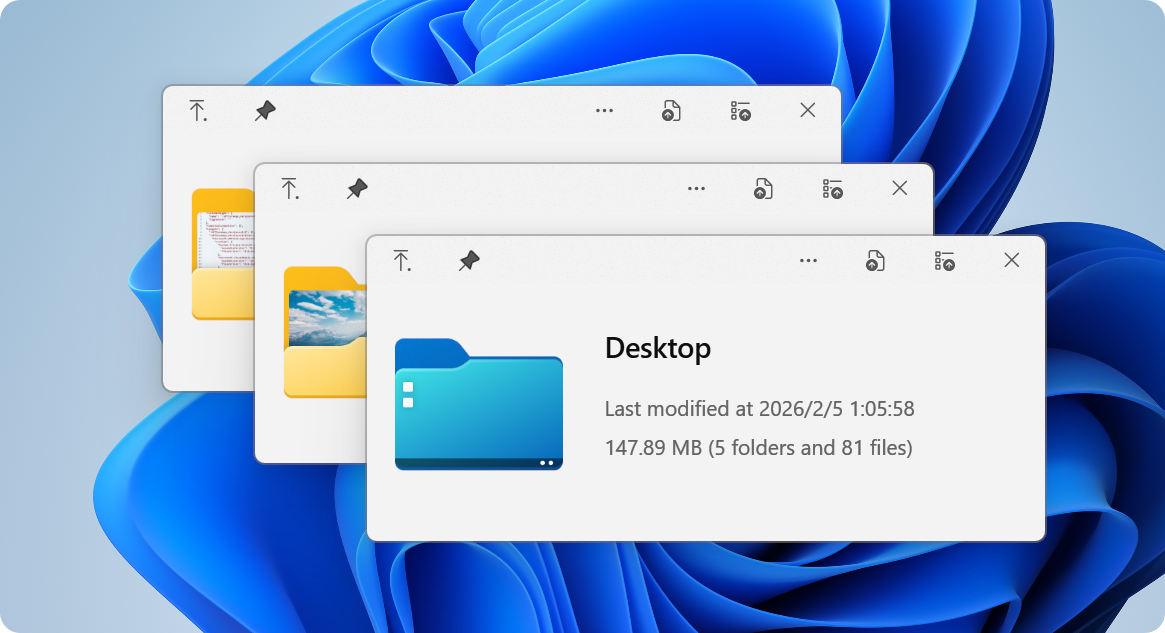
Official QuickLook illustration of its preview windows. Source: quicklook.
The space bar earns its keep
With QuickLook running, select a file in Explorer and press Space. A preview window appears. Press Space again or Escape to close it, then move on. That is the basic loop. The appeal is not that Windows cannot open your files. It is that checking a file and working on a file are different jobs, and the first should not always require the second.
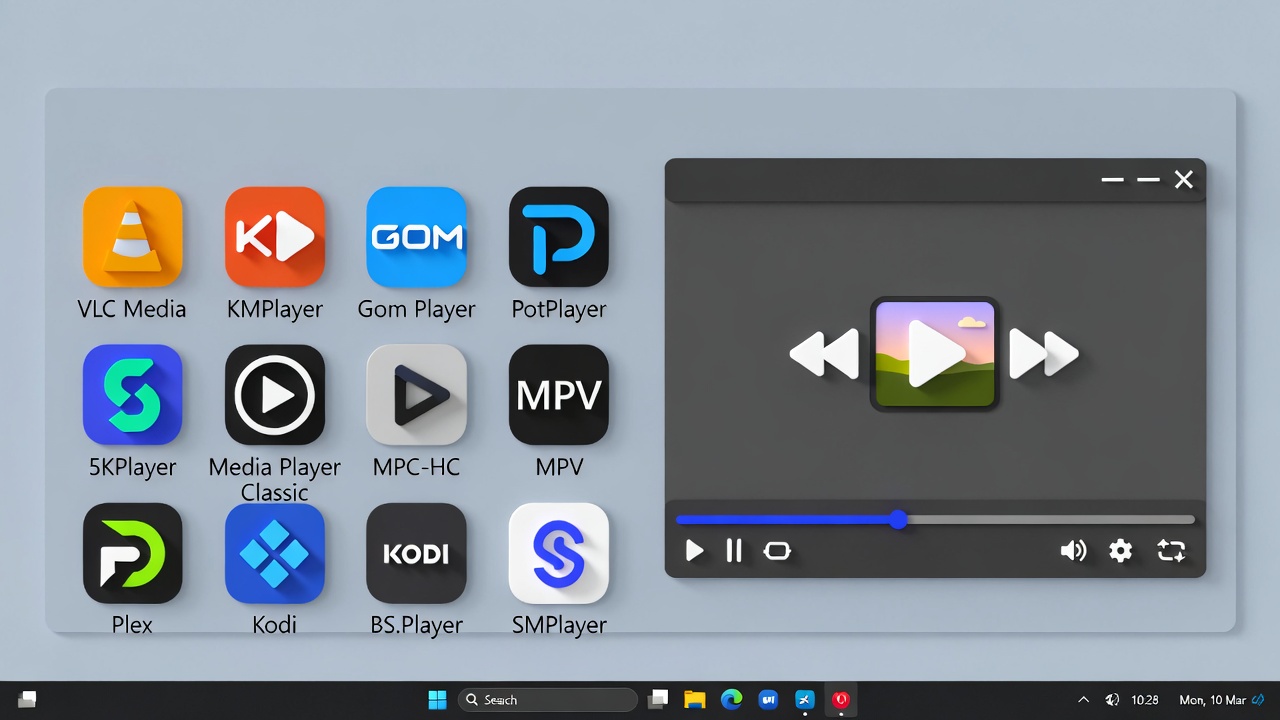
Think of a Downloads folder containing receipts, screenshots, a ZIP archive and an old text file. A quick peek can tell you which item deserves opening properly. QuickLook offers previews across images, PDFs, media, text and other formats, with plugins extending what it can handle. Actual support depends on the format and installed plugins, so treat the project's big format list as a menu, not a promise that every unusual file will render perfectly.
A useful first five minutes
Start with the files you already recognise: a JPEG, a PDF and a plain text document. Select each one and use Space. This gives you a baseline before trying the office document or specialist format that may need an extension. If a file will not preview, check the supported formats and plugin documentation rather than repeatedly hammering the keyboard. The space bar has done nothing wrong.
The project offers a Microsoft Store route and direct downloads through its official repository. These are not completely interchangeable: the project's documentation notes limitations around Open and Save dialogs for the Store edition. For ordinary Explorer previews, the Store's update handling may be convenient. If dialog integration matters to your workflow, read the direct-install instructions before choosing.
Plugins are useful, not compulsory
QuickLook's extension system is one reason it can grow beyond the obvious image-and-PDF job. Community plugins add support for more specialised content. That can be helpful if your daily folders contain something other than holiday pictures, but install only the extensions you actually need, from a source you trust.
A preview plugin is executable software, not a harmless colour theme. Read its installation instructions, supported app version and project status. If your current files preview correctly, there is no prize for collecting every available plugin. A small utility is allowed to stay small.
What it does not replace
QuickLook is a viewer, not your document editor, archive manager or media library. A preview can help identify a file, but it does not turn a complicated document into a fully editable workspace. When you need to change the contents, open the real application. If a preview looks incomplete, confirm in that application before deciding the file itself is broken.
Cloud folders deserve a little common sense too. A file that exists only as an online placeholder may need to download before its contents can be shown. Previewing is still access to the file, and the speed depends on where the actual bytes live. Similarly, do not treat a preview window as proof that an unknown attachment is safe. Keep ordinary caution around untrusted downloads.
A small change worth considering
The best audience is anyone who sorts files by repeatedly opening and closing them: students checking handouts, people handling receipts, or anyone trying to make sense of Downloads. QuickLook will not organise that folder for you. It simply makes the inspection stage less tedious, which is often the part that causes the organisation project to be postponed until the next geological era.
For Windows users who miss this particular Mac convenience, the proposition is pleasantly direct. Try the preview loop with everyday files, add plugins only when a real need appears, and keep your normal applications for actual work. One key, one useful answer, then back to what you were doing.
Download details and platform information: https://freewares.org/software/quicklook
Official project and installation notes: https://github.com/QL-Win/QuickLook
Project website: https://quicklookapp.vercel.app/