Sumatra PDF: Open the Document and Get Reading
- Windows
- Reading
Sometimes the entire job is opening a document. Not signing up for a workspace, not choosing a subscription, not deciding whether a sidebar needs access to your account. Just opening the file and reading page three.
Sumatra PDF is a free reader for Windows with a focus on getting documents onto the screen quickly. Despite the name, its supported formats extend beyond PDF to e-books, comic archives and several other document types. That makes it worth considering when your reading folder is a mixed bag.
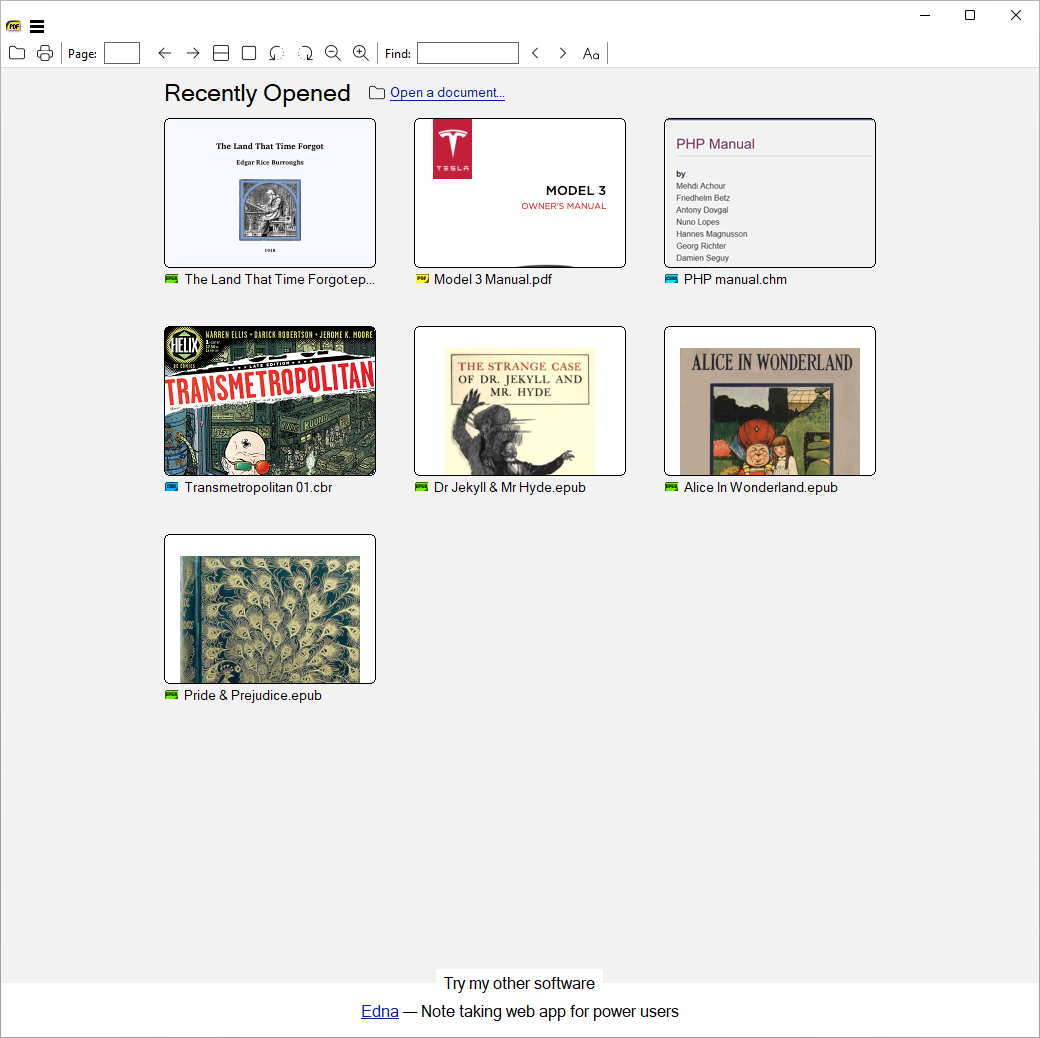
Sumatra PDF with a document open: a small, fast reader without the luggage. Source: sumatrapdfreader.org.
A reader with a broader appetite
PDF is the obvious starting point, but SumatraPDF also opens supported EPUB and MOBI e-books, DjVu documents, CHM help files and comic archives such as CBZ and CBR. The official format list is the place to check unusual extensions before making it your default.
Do pay attention to the word “unencrypted” for protected e-book formats. Owning a book in an account does not mean every desktop reader can open the downloaded file. SumatraPDF is not a tool for bypassing a store's copy protection.
It is also sensible to distinguish support for a format from perfect rendering of every file ever created in it. If a document has unusual layout or important interactive elements, inspect those parts rather than judging compatibility from the first page alone.
Make the page comfortable first
Open a familiar document and adjust the view to suit the reading task. A page fitted to the window can be useful for an overview; a wider view may make dense text more comfortable. The best setting is the one that lets you read without constantly wrestling the scroll position.
For a long document, use its navigation structure where available instead of repeatedly dragging the scrollbar and hoping to land somewhere sensible. A technical manual and a scanned magazine have different structures, so do not expect the same navigation aids in both.
The current documentation also points newcomers to a command palette opened with Ctrl+K. It lets you find commands by typing a few letters rather than memorizing every menu. Check the version you have installed if the interface differs from the current guide.
Finding words depends on having words
Text search is one of the simplest ways to make a long PDF less intimidating. Search for a distinctive term, then check the surrounding paragraph. A hit is a route into the document, not a substitute for reading what the sentence actually says.
A scanned page may only contain a picture of text. If the file has no usable text layer, ordinary text searching will not suddenly recognize the lettering. That is a document limitation, not proof that the word is absent.
Keep that distinction in mind with older manuals, receipts and image-heavy publications. A document can look perfectly readable to your eyes while offering very little searchable text to software. When search fails, try a phrase you can visibly see on a known page before assuming the whole feature is broken.
Choose a default deliberately
If you like the reading experience, you can make SumatraPDF the default for the formats you use most. There is no need to hand it every extension on the first day. Start with PDFs, or keep it as a second reader while checking a few real documents.
The project offers installation and portable-use guidance. A portable setup can be convenient, but it still needs a sensible home and a plan for updates. “No installer” is not the same thing as “nothing to maintain”.
Use caution with unexpected attachments regardless of which reader you choose. A lightweight application is not a reason to open files from an untrusted sender, and a familiar PDF icon says nothing about where a document came from.
For people who want to get to the page
SumatraPDF makes sense as an everyday reading tool, especially if you move between manuals, e-books and comic archives. It should be judged on the documents you actually open, not on a checklist of features you might use once in five years.
I would keep a few representative files for a quick trial: a long manual, an e-book and a document with a layout you know well. If opening, navigating and reading them feels easy, that is a useful result. A reader has done its job when you stop thinking about the reader.
See the official documentation and supported-format list for current capabilities.