Xournal++: Write and Draw on Your PDFs
- Xournal++
- Notes
A PDF handout is wonderfully tidy until you need to draw an arrow between two paragraphs, work out an equation in the margin, or explain why a diagram is wrong. Then the comment box starts feeling like the wrong kind of furniture. Xournal++ takes a different approach: treat the page as paper and write on it.
This free, open-source note-taking app runs on Windows, macOS and Linux. It supports handwriting, drawing tablets and pressure-sensitive pens, but its appeal is broader than owning a fancy stylus. It gives diagrams, handwritten notes and PDF annotations a shared workspace without asking you to rent a notebook.
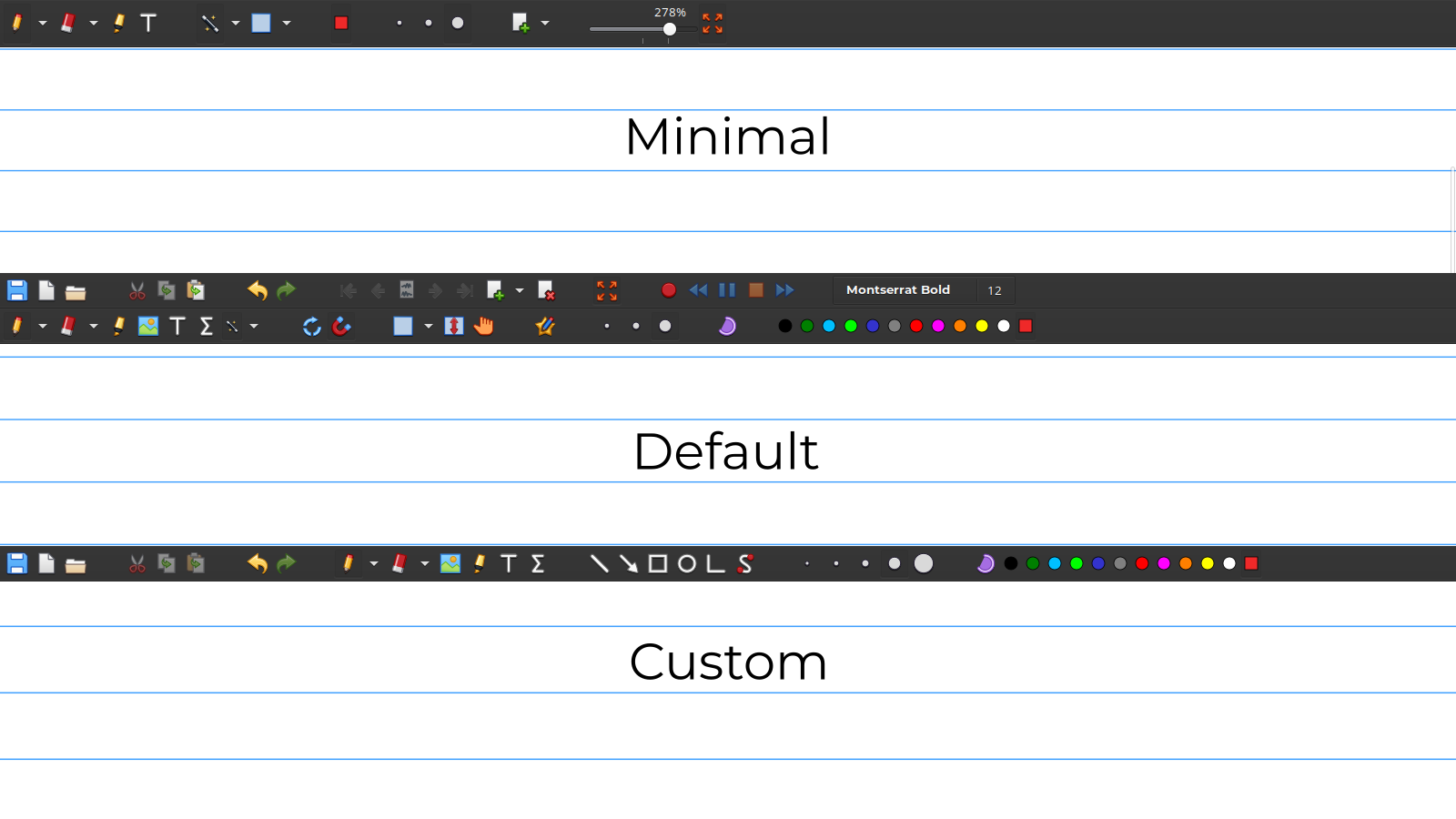
Official Xournal++ screenshot comparing toolbar layouts. Source: Xournal++.
Paper, with a few useful extras
The tools are familiar: pen, highlighter, eraser, shapes and text. Layers help separate parts of a complicated note, while page previews help you find your place. Images can sit beside handwriting, and the project includes a LaTeX editor for mathematical content. You can customise the toolbar rather than keep every possible control in your face.
That makes sense for a student working through a problem sheet, a teacher preparing an explanation, or anyone who thinks more clearly with a sketch than a paragraph. A mouse will handle basic marks, but handwriting with one is not a personality test worth taking. A pen tablet or supported touchscreen is the more natural fit for long sessions.
Bring a PDF into the notebook
The documented route is File, then Annotate PDF, or opening the PDF directly. Xournal++ uses the document as the background of a journal. You draw and write over that background rather than rewriting the original text. This distinction keeps expectations sensible: it is a notebook for annotating a document, not a full PDF typesetting application.
For a first go, choose an unimportant handout. Add a highlight, a handwritten note and a shape. Save the working journal, then export a separate PDF and open that export in your usual reader. The exercise checks your own workflow and hardware without putting an important document at risk. It also shows the difference between the editable project and the copy you would share.
Keep the working file and its background together
The official guide explains that the journal file, using the .xopp extension, is stored separately from the background PDF. Moving one without the other can leave the journal unable to find its background. That is the sort of detail that becomes very interesting five minutes before a presentation.
The guide documents an attach mode that copies the PDF alongside the journal and uses a relative reference. Follow its Save As instructions when moving the project, and check the result on the destination computer. Do not assume sending the .xopp file alone sends everything. For a finished handout, an exported PDF is usually the simpler thing for another person to open.
Export is a delivery copy
Keep the editable journal if you expect to revise your notes. Xournal++'s guide warns that exported annotations cannot be edited as Xournal++ strokes in the PDF, and that built-in PDF annotations such as forms and pop-up notes are not preserved by its export. A signed or interactive form therefore needs particular care. Test a copy before making this part of a serious paperwork routine.
The app also keeps you from overwriting the background PDF during export, for good reason: changing that background can make the journal's references inconsistent. Treat the original PDF, working journal and finished export as different pieces with different jobs. Naming them clearly beats relying on your future self to remember which file was the important one.
A good fit for visual thinking
Xournal++ is worth considering when your notes contain arrows, diagrams, equations and handwriting that a conventional text editor makes awkward. It is less useful if all you need is a short typed list. Nor should its PDF support be mistaken for a complete replacement for every form-filling and document-editing tool.
The sensible starting point is one real task on a copy: annotate a lesson, mark up a diagram or work through a problem. If the pen input and export fit your routine, the app has room to grow with layers and custom tools. If they do not, there is no subscription to cancel and no notebook hostage situation to negotiate.
Software details and downloads: https://freewares.org/software/xournal-plus-plus
Official project: https://xournalpp.github.io/
PDF workflow and export limits: https://xournalpp.github.io/guide/pdfs/