FancyZones: Put Your Windows Where You Want Them
- Windows
- Productivity
- Window management
A large monitor can hold an impressive number of windows and still leave you searching for the one you need. The extra space helps only if the layout makes sense. Otherwise it is just a bigger desk on which to scatter the same paperwork.
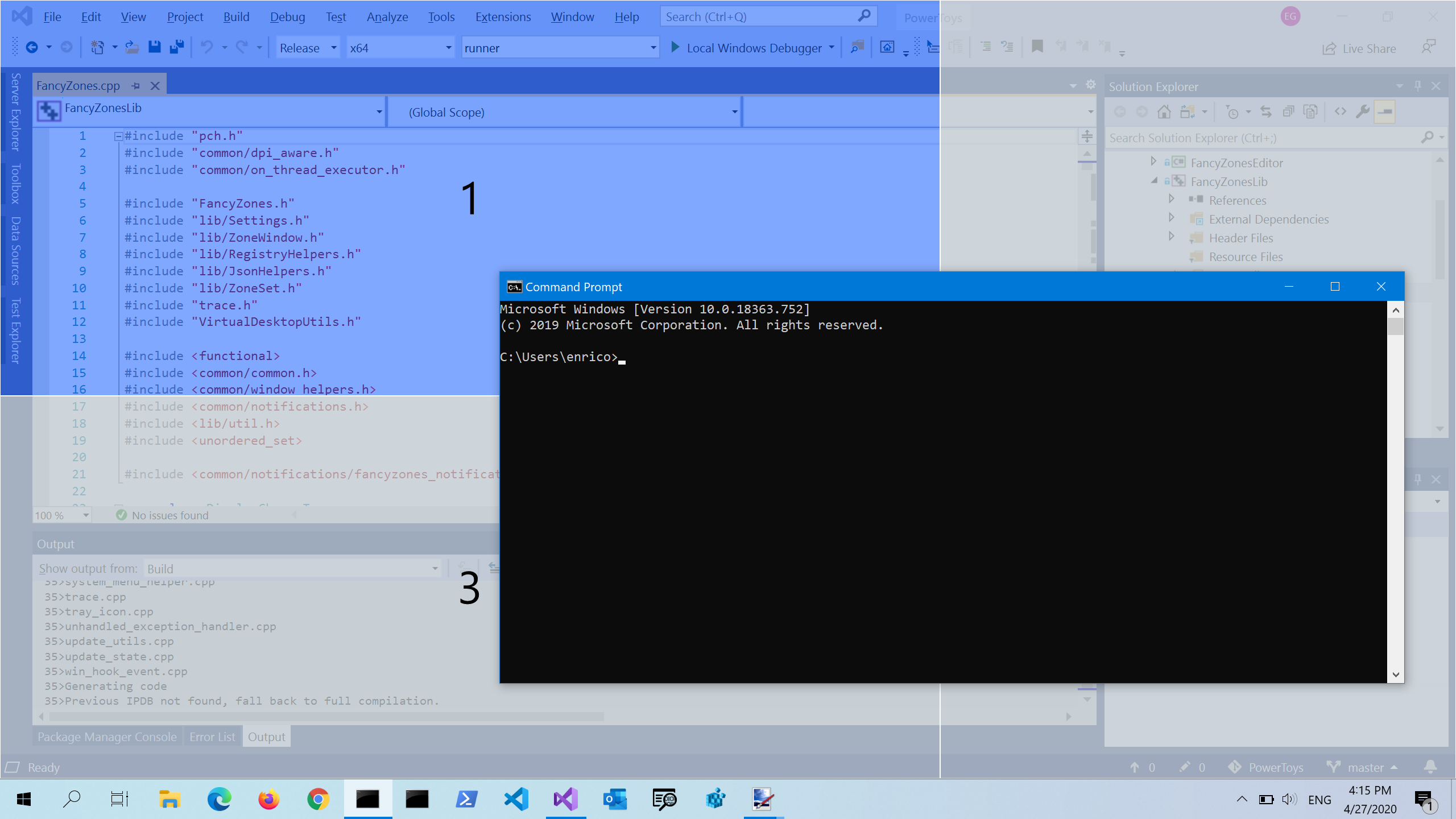
FancyZones, part of Microsoft PowerToys, lets you define places for windows and snap them into those areas. PowerToys is free and open source. This particular utility is useful when the standard Windows arrangements almost fit your work, but not quite.
The FancyZones layout editor: draw the zones once, then snap windows into them with Shift or a shortcut. Source: Microsoft Learn.
Give the screen a job description
Think about the applications you use together. Perhaps you need a wide document beside a narrow reference window, or two equal working areas with a smaller chat column. Start with that relationship rather than dividing the monitor into as many boxes as possible.
A layout is only helpful if the contents remain readable. Three narrow columns may look organised while making every document awkward to use. Leave enough width for the actual application, its controls and the size of text you comfortably read.
For a first setup, choose one common task and a simple layout. You can make others later. There is no need to design an elaborate control room before discovering whether you prefer the browser on the left or right.
Open the editor and choose a starting layout
Enable FancyZones in PowerToys and open its layout editor from the settings. The editor offers layouts you can apply and adjust, with the selected monitor as the target when more than one display is connected.
Custom layouts can use a grid or a canvas approach. A grid is a sensible first choice when you want areas that relate cleanly to one another. Adjust the divisions and spacing until the arrangement suits the screen, then try it with real windows.
Check each monitor separately if their sizes or orientations differ. A layout that works on a wide landscape display may not make sense on a small laptop panel. Matching the task matters more than forcing every screen to look identical.
Snap a window without wrestling it
By default, hold Shift while dragging a window to reveal the zones. Move over the area you want and drop the window there. FancyZones then positions and resizes it for that zone.
This default is configurable, so check the current settings if a guide and your desktop behave differently. Microsoft documents options for activating zones while dragging, including behaviour that does not require holding Shift.
Try the ordinary drag workflow before enabling extra shortcuts. It makes the relationship between a zone and a window visible, which is useful while you are learning. If a window cannot shrink comfortably to the desired area, change the layout rather than treating the application as the problem.
Keyboard changes should be intentional
FancyZones can override Windows Snap shortcuts so keyboard commands move windows between its zones. That can be convenient, but it changes familiar behaviour. Enable the override deliberately instead of wondering later why a shortcut you already knew now behaves differently.
The documentation distinguishes moving by zone index from moving by relative position. Read the option before choosing it, then test with a few ordinary windows. The most useful shortcut is one you can predict without opening the settings every time.
Elevated applications are another boundary. Microsoft notes that snapping those may require PowerToys to run with administrator permissions. Do not elevate everything merely for convenience. Begin with normal applications and decide whether the extra permission is actually needed for your use.
Let the layout earn its place
Use the arrangement for a real task and notice where you keep resizing things manually. That is feedback. A zone may be too narrow, a chat column may not deserve permanent space, or two windows may work better side by side than in a complicated stack.
FancyZones suits people who regularly return to similar multi-window work. It is less necessary when the standard Windows layouts already feel comfortable. The goal is fewer small window-management interruptions, not a screenshot of a perfectly arranged desktop that nobody enjoys using.
I would start with one simple grid and leave the keyboard overrides alone until the layout proves useful. See the official FancyZones guide and PowerToys overview for current options.