Flow Launcher: Find Your Windows Apps and Files Faster
- Flow Launcher
- Windows
- Productivity
The Start menu is fine until you know exactly what you want and still find yourself hunting for the right icon. A launcher reverses the arrangement: tell the computer a few letters and let it bring the application to you. Flow Launcher gives Windows that keyboard-first habit, with room to go beyond opening programs.
It is free, open source under the MIT licence, and built around a search box summoned by a shortcut. The default is Alt+Space, though you can change it. Applications, files, bookmarks, calculations and settings can all become things you ask for rather than places you click through.
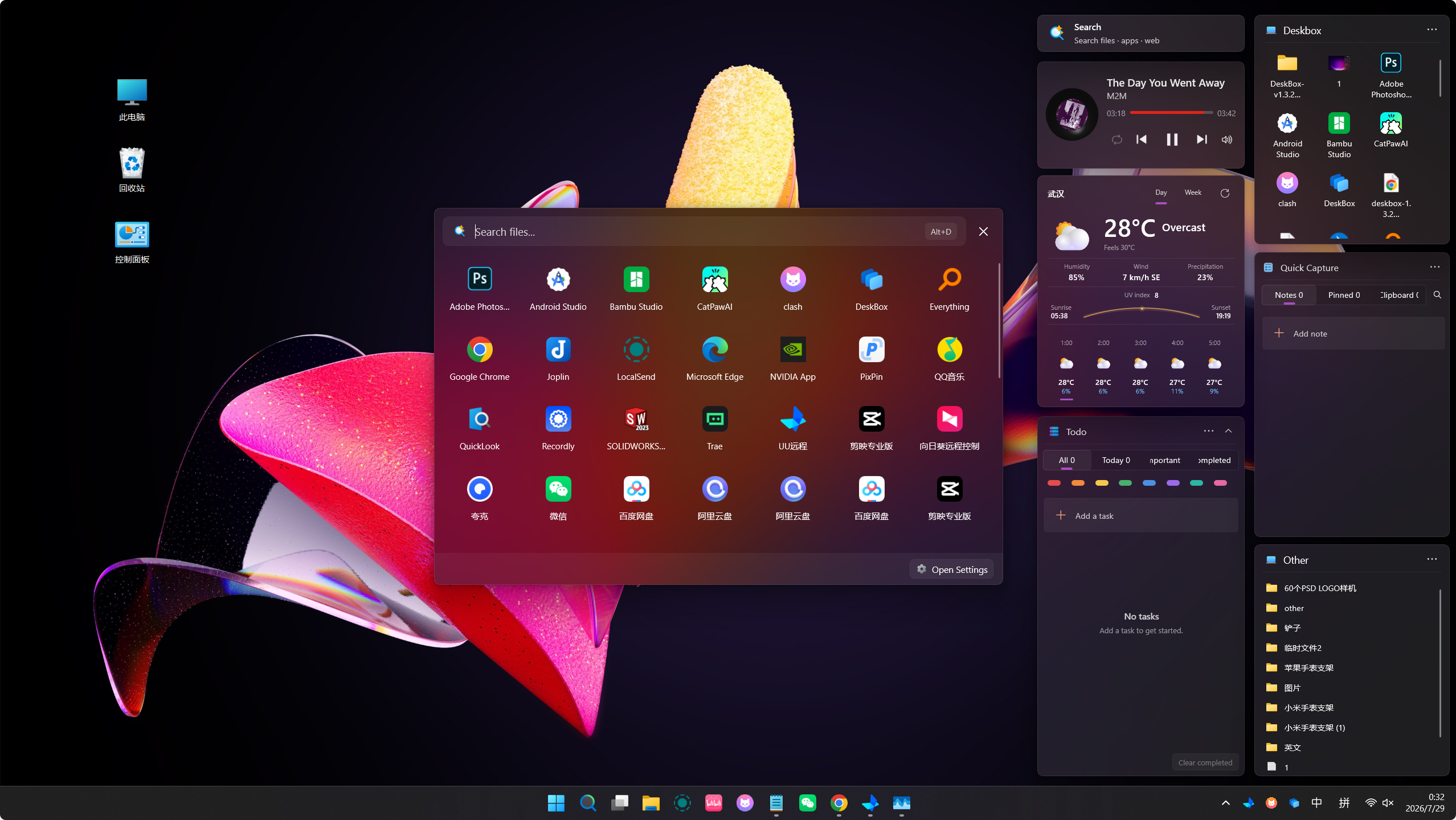
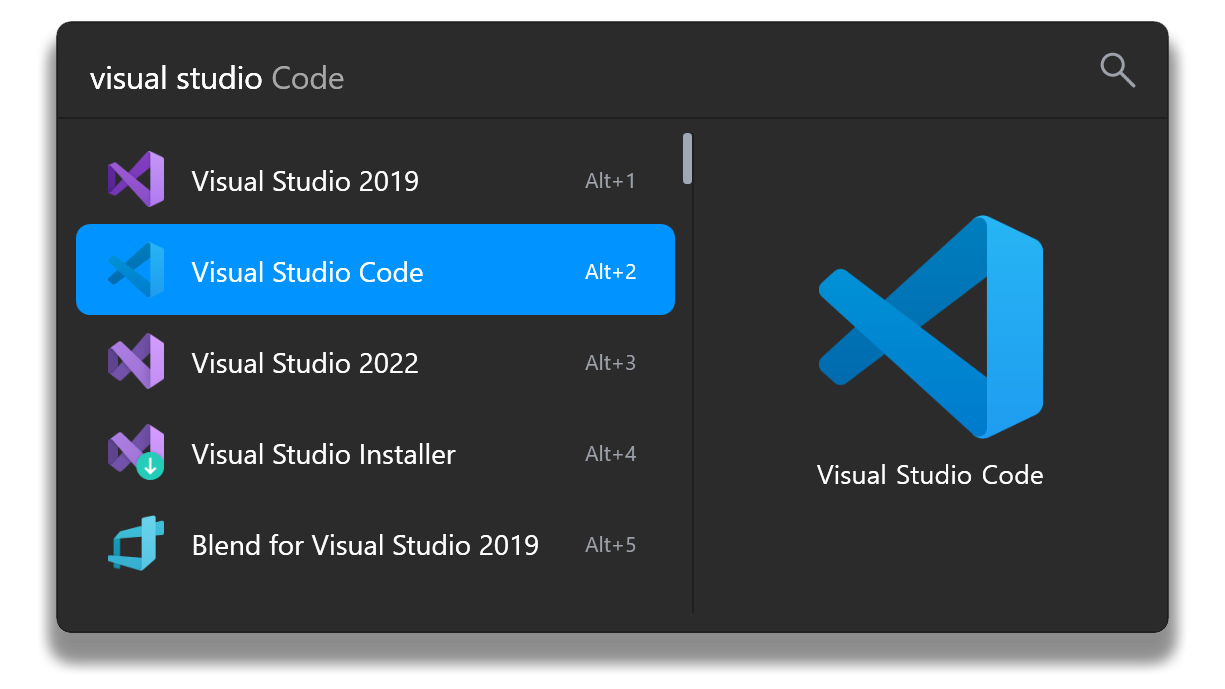
Official Flow Launcher screenshot: matching applications appear as you type. Source: Flow Launcher.
One box, fewer detours
The simplest use is also the best place to begin. Bring up Flow, type the name of an installed application, choose the matching result and open it. Repeat with the applications you use every day. A launcher earns its place by shortening a familiar task, not by showing off everything in its settings panel on day one.
The same box can handle a calculation and let you copy the result. Web searches can go to your chosen search engine. Windows settings and system commands have their own entries too. These are small shortcuts, but they remove the awkward moment when a quick task turns into opening another window just to find a button.
File search needs the right foundation
Flow's website explains that file and content search can use Everything or Windows Search. That is worth noticing because the launcher and the search backend are different pieces. Where your files live, what has been indexed and which backend you choose will affect the results.
Start by searching for a document you can already locate manually. Then try a filename with an unusual word and something stored in a different folder. If a result is missing, check the search settings and indexing scope before declaring the file lost. The computer is allowed to have misplaced its index without having eaten your homework.
A good setup is deliberately boring
Pick a shortcut that does not clash with something you already use. Keep the first configuration close to the defaults, then adjust result priorities and appearance as real annoyances emerge. The project offers themes, animation and sound options, but you do not need a small light show every time you open a calculator.
After a few days, look at what you actually search for. If Flow mostly launches four apps and finds recent project files, that is already a useful outcome. There is no requirement to turn it into the command centre of your entire digital life before lunch.
Plugins give it a second life
The built-in plugin store is where Flow can move beyond a general launcher. The official site shows examples for finding Steam games, searching notes and controlling supported services. Developers can build extensions in several languages, including C#, Python and JavaScript. The details and requirements belong to each plugin, so read its own description before installing it.
That flexibility also means the free launcher does not make every connected service free. A plugin may depend on a paid account, an API key, a separately installed application or network access. Check those conditions rather than assuming every search result stays on your computer. Install a few extensions for real tasks, not a collection you will spend more time updating than using.
Know when a result is an action
Opening a document is one thing; running a shell command or shutting down Windows is another. Flow includes powerful system and command features. Read the selected result before pressing Enter, especially while learning a new keyword or plugin. A fast keyboard workflow should still leave room for a second of attention.
That said, the core proposition remains pleasantly simple. If you prefer typing to hunting through menus, Flow Launcher offers a useful front door to your PC. Begin with application launching, add file search once it behaves as expected, then bring in one plugin that solves an actual nuisance. The goal is less mouse mileage, not a new hobby in configuring launchers.
Windows downloads and software details: https://freewares.org/software/flow-launcher
Official website and features: https://www.flowlauncher.com/
Source and project documentation: https://github.com/Flow-Launcher/Flow.Launcher