Free Screen Recorders for Windows 11: Choose by the Job
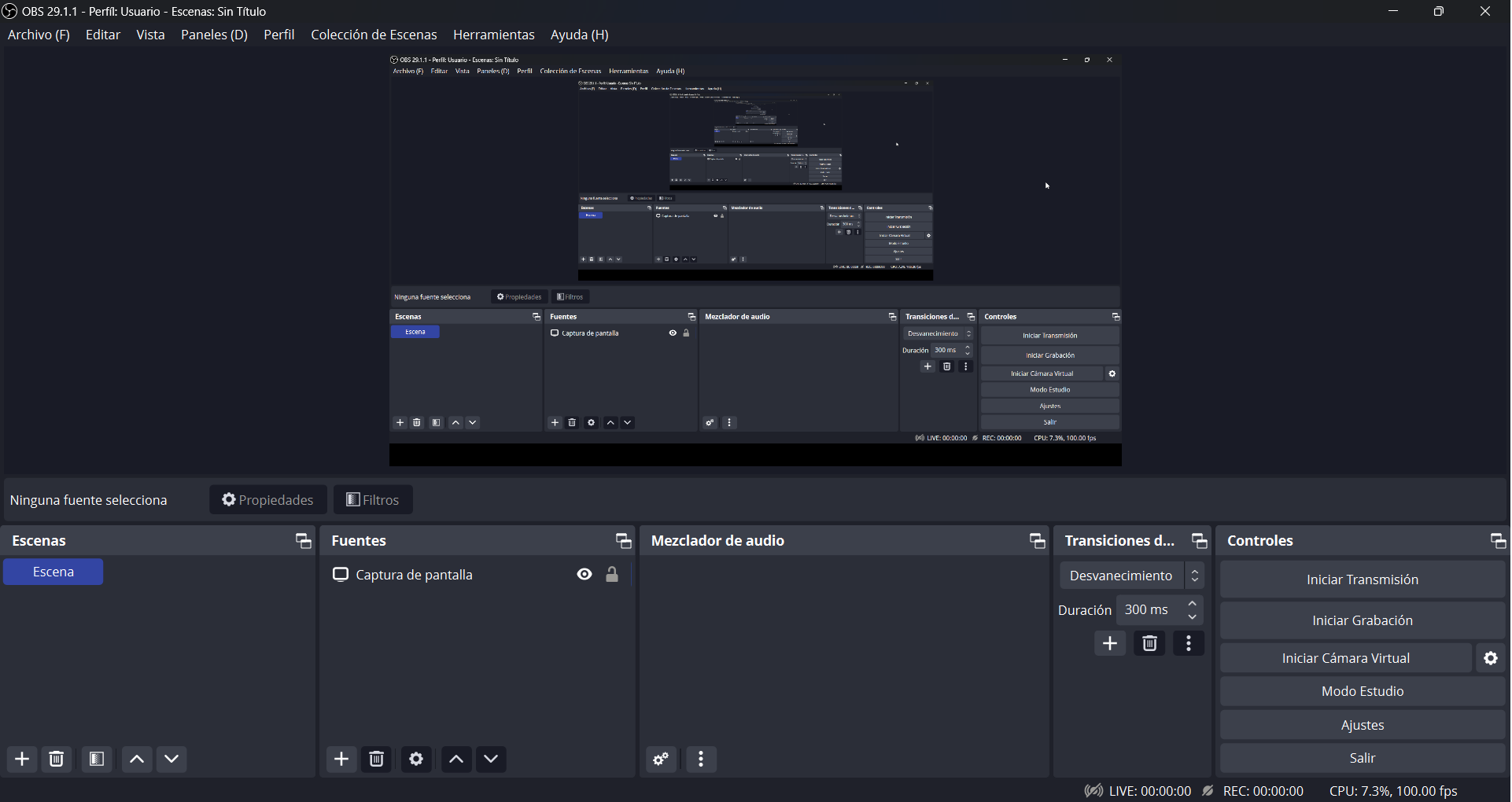
Cover: OBS Studio 29.1.1 on Windows 11, screenshot by SamuelCJ, May 16, 2023, via Wikimedia Commons, CC BY-SA 4.0. Unmodified historical screenshot.
You do not need a subscription to show someone a broken menu. You might not need another app, either. The useful question is whether you want a rectangle of your screen, one application, or a recording assembled from several sources.
Start with Snipping Tool for a quick selected-area clip. Use Xbox Game Bar for a supported app or game. Choose OBS when sound sources, a webcam and repeatable scenes matter. ShareX fits people who want recordings, GIFs and screenshot workflows together.
This guide draws on current product documentation, checked on November 16, 2026.
The short choice
Your job | Start here | What to check first |
|---|---|---|
Show a short action in a selected screen area | Snipping Tool | Update the app; check microphone and PC-audio controls |
Capture a supported app or game | Xbox Game Bar | It is not a desktop or File Explorer recorder |
Combine a screen, webcam and controlled audio | OBS Studio | Sources, audio routing and an export your editor accepts |
Make clips or GIFs alongside screenshot workflows | ShareX | Your installed version and after-capture/upload tasks |
Snipping Tool: the first stop for a quick clip
Windows 11's Snipping Tool instructions describe selecting a rectangle, starting a video recording, stopping it and saving the result. Press Win + Shift + R, or open Snipping Tool and choose Record.
Audio advice needs a date check. Microsoft's March 2023 tutorial still says audio is unsupported. Its September 2023 general rollout announcement subsequently added sound and microphone support. Do not follow an old silent-recording workaround without checking the current app.
Look at the audio controls before starting, rather than assuming the microphone or computer sound is included. If your controls differ, check app and Windows updates.
Snipping Tool suits a focused visual explanation. For a recurring demonstration with a webcam, several sources or more deliberate audio routing, move to OBS instead of stretching a quick capture into a production setup.
Xbox Game Bar: keep it to one app
Game Bar is useful when the action stays inside a supported application or game. Microsoft's recording instructions give Win + Alt + R to start and stop, Win + Alt + M to toggle the microphone, and Win + G for its controls. Recordings are MP4 files in Videos/Captures.
The boundary matters more than the shortcut: it records one application at a time, not a complete desktop walkthrough. The Australian eSafety Commissioner explicitly notes that Windows desktop and File Explorer cannot be recorded with Game Bar. If your explanation moves between folders and apps, choose another recorder before you begin.
To include computer sounds, Microsoft documents Game Bar > Settings > Capturing > All. Set the microphone separately, then check a saved sample.
OBS Studio: choose it for control
OBS Studio is free and open source. Its official help page explicitly rules out watermarks and artificial software restrictions. Local recording does not require setting up a streaming destination.
The Quick Start Guide begins with the Auto-Configuration Wizard, then sources and audio. Build a scene around the display or window you need, add a webcam if useful, and watch the audio meters before recording. Our focused OBS guide covers that smaller setup.
For narration, OBS gives you control over sources and sound. Recording performance depends on your hardware, resolution and encoder; start with the wizard and check a short sample on your PC.
Its application-audio capture guide also lists compatibility limits. Capturing an app separately while capturing the same sound through Desktop Audio can duplicate it. Do not add every available audio source and hope the mix sorts itself out.
Check the recording container, too. OBS documents both resilient MKV recording with remuxing and newer Hybrid MP4 options in its formats guide. Avoid blindly applying an old preset or assuming every kind of MP4 behaves alike. Open a sample in the player or editor you actually plan to use.
ShareX: useful beyond a recording button
ShareX combines screen recording, GIF capture and screenshot workflows. Its official repository states that it is free, open source and requires no account to use the app. An upload destination may have its own requirements.
Version matters here. The 22.0 release notes announce native recording without relying on FFmpeg, system audio, microphone audio and camera overlays. Version 22.1 adds native GIF recording. GIF is for silent loops, not a spoken tutorial. Older tutorials requiring FFmpeg and recorder devices are therefore not universal instructions for the current recorder.
ShareX 22.0 was a major rewrite, and its release notes warned of lower stability during that transition. Check your installed version when following a setup tutorial.
Before recording private material, review after-capture tasks and upload destinations. Saving a file locally and uploading it are different actions. Our ShareX screenshot guide explains why that workflow check matters.
Before a long recording
Check recording-length settings, available disk space and your power connection before a long session. A free recorder still needs enough storage and a working audio setup.
Make a 20-second check before the real take
Close private windows and notifications. Record the actual path through your task, say a sentence, and play any sound the viewer needs. Stop, find the saved file, then open it outside the recorder.
Can you read the small text? Hear the voice and intended computer audio without echo? Did the recording follow the right window? Can your editor open it? Did it stay local unless you chose to upload it?
Pick the least complicated tool that captures the whole job, then verify the file before recording ten minutes of it.