FreeFileSync: Keep Two Folders in Step
- FreeFileSync
- Backup
- Utilities
Two folders can look reassuringly similar while quietly containing different versions of your work. One is on the laptop, another is on an external drive, and somewhere between them sits a document edited on the wrong Tuesday. Copying everything again is an option. Understanding what changed is a better one.
FreeFileSync compares folders and shows the actions needed to bring them into the relationship you choose. It runs on Windows, macOS and Linux, with a free edition aimed at private use. The important distinction comes before the first click: synchronising folders is not automatically the same thing as keeping a recoverable backup.
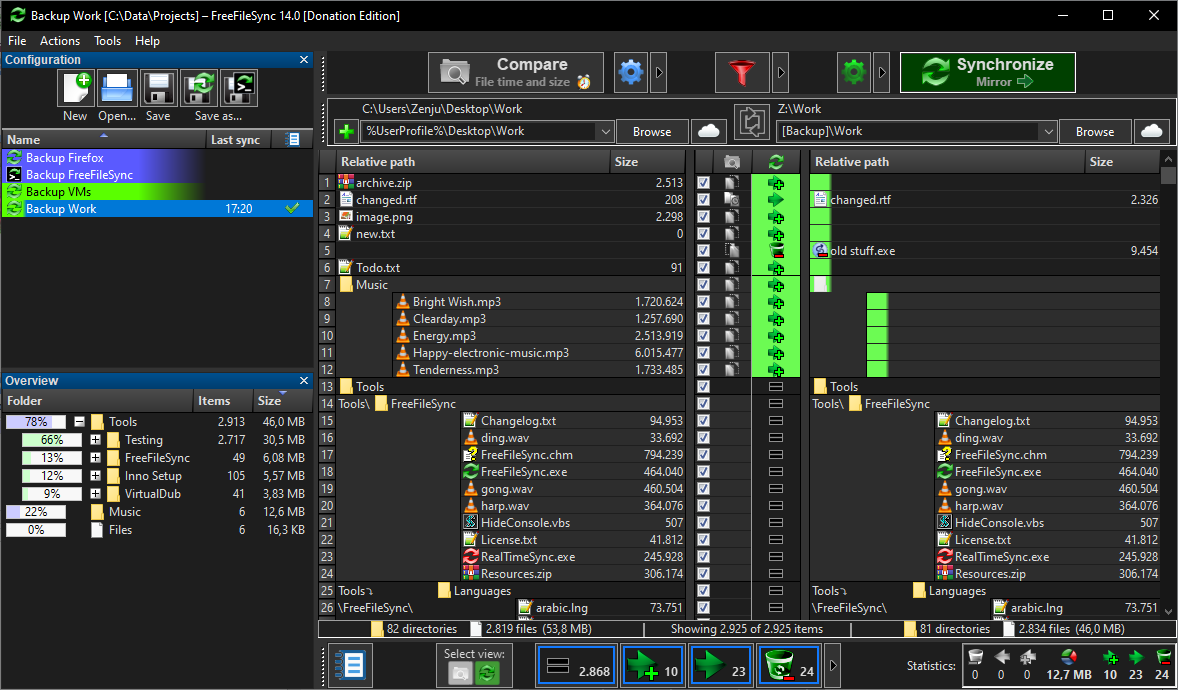
Official FreeFileSync screenshot: compare the proposed file operations before synchronising. Source: freefilesync.
Compare first, commit second
The application starts with a left folder and a right folder. Choose them carefully, then compare. The results are the useful part: differences become visible before files are copied or removed. This gives you a chance to spot the wrong drive, an unexpectedly empty source, or a folder that should never have been included.
For a first attempt, make two disposable folders and put a few unimportant documents in them. Change one file, add another and remove a third. Compare again and read the proposed actions. That is a safer introduction than pointing a new sync configuration at the only copy of your family photos and hoping the arrows are feeling friendly.
Choose the relationship you want
FreeFileSync documents three main variants. Two way carries changes in both directions, including creates, updates and deletes. It uses database files to compare the current state with the previous synchronisation. That suits folders where work legitimately happens on both sides, but it also means a deletion can travel.
Mirror makes the target match the source. The left side is the source and the right side is the destination; files can be created and deleted on the right to make an exact copy. Update is different: source deletions are not propagated to the backup drive. The manual gives the useful example of making room for new camera photos without deleting the saved copies too.
Those are different promises, not three speed settings. Read the selected variant every time you build a new job. If the task is simply to keep new photos, an exact mirror may be precisely what you do not want.
Keep an exit route
Versioning is worth understanding before relying on a recurring job. Instead of simply discarding files that are deleted or overwritten, FreeFileSync can move them into a specified versioning folder. Its naming options can preserve multiple older versions with timestamps. That gives you material to recover from, provided you have configured it and kept enough space.
A versioning folder is still storage that needs looking after. If it lives on the same failing disk as everything else, it will not rescue you from a hardware failure. If it is writable from a compromised computer, it is not magically protected from malicious changes. Keep an independent backup strategy for important data and occasionally check that you can actually restore a file.
Free does not mean every edition
The standard download is free for private use, but the project also has Donation and Business editions. Its current website directs commercial users to the Business licence. Do not read the open-source label as a promise that the provided business download and every extra feature cost nothing.
For a home user comparing a laptop folder with an external drive, start with the standard edition and its documented features. For a workplace deployment, review the current business terms before installing it across a team. Buying the right licence is less annoying than discovering the mismatch after the software has become part of a routine.
The real benefit is visibility
FreeFileSync's strongest idea is not a heroic claim about never losing files. It is putting a clear comparison between your intention and a batch of file operations. That makes it useful for a photo archive, a project copied to removable storage, or a pair of working folders that has become hard to reason about.
Set up one small job, inspect the comparison, pick the right variant and decide how old files should be retained. Only then consider automation. The aim is to stop guessing which folder is current, not to automate the guessing at impressive speed.
Download and platform details: https://freewares.org/software/freefilesync
Official project and edition information: https://freefilesync.org/
Synchronization variants: https://freefilesync.org/manual.php?topic=synchronization-settings
File versioning: https://freefilesync.org/manual.php?topic=versioning