NAPS2: Turn Paper into Searchable PDFs
- NAPS2
- OCR
A scanner should turn paper into a file, not turn a five-minute job into a tour of a printer manufacturer's entire software portfolio. NAPS2 keeps the job focused: scan pages, arrange them, save a document. Its name expands to Not Another PDF Scanner, which is fair warning that somebody else has also had enough of scanner software.
The app is free and open source on Windows, macOS and Linux. There are no paid OCR credits or document quotas hiding behind the basic workflow. It is a useful candidate for receipts, letters, forms and the slightly leaning pile of paperwork that has been waiting for a less annoying application.
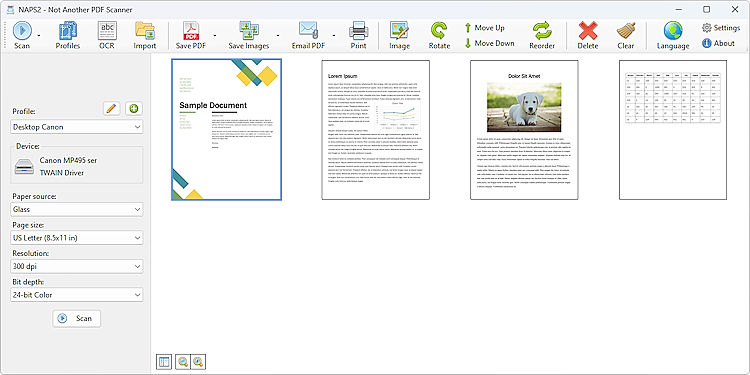
Official NAPS2 screenshot showing scan profiles and page thumbnails. Source: naps2.
Make one sensible scanning profile
Start by choosing your scanner and a driver that works with it. NAPS2's Windows options include WIA and TWAIN; supported driver routes depend on the platform and device. A scanning profile lets you keep useful choices such as page size, resolution, colour mode and paper source together instead of rebuilding them for every session.
Test with one unimportant page before feeding an entire stack. Check that the edges are visible, the orientation is right and the text is readable. A document feeder or duplex scanner can save effort, but the hardware still has to support the job. NAPS2 cannot persuade a single-sided feeder to grow a second scanning element by force of enthusiasm.
Fix the pages before making the PDF
The main window gives you page thumbnails that can be rearranged before saving. Rotate a page that arrived sideways, crop unwanted edges, and check brightness or contrast if a faint original needs help. The official site also documents manual-duplex interleaving for a workflow where you scan the two sides in separate passes.
This is the moment to look for missing pages or a sheet fed twice. A neatly named PDF with one absent page remains an incomplete document. Save the output to a folder you can find again and open it in a separate PDF reader. That final check is not glamorous, but neither is having to ask someone for a letter they already sent you.
Make scans searchable with OCR
A normal scan is an image of text. Optical character recognition adds a text layer so a PDF reader can search for words inside it. NAPS2's OCR setup asks you to download language data, select the appropriate language and enable searchable PDFs. Multiple languages are supported when the relevant packs are installed.
The documentation distinguishes faster OCR from a slower Best mode, with correction options for difficult scans. Better input still matters: straighten the paper, use a readable scan and pick the right language. Recognition errors are possible, especially in names, numbers, tables and poor originals. Use the scan as the reference when accuracy matters, rather than treating recognised text as a certified transcript.
It can help with existing PDFs too
You do not need a scanner to use every part of NAPS2. Existing PDFs and images can be imported for document jobs, and the OCR guide says pages that already contain text are left alone while pages without it receive OCR when enabled. That is a useful distinction: importing a PDF is not a blanket promise that every page will be flattened into an image.
NAPS2 does not directly export the OCR result as a plain text file. Its guide suggests saving the searchable PDF, then selecting and copying text in a PDF reader if that is what you need. It is a document-scanning tool with useful OCR, not a replacement for every PDF editor or word processor.
A practical desktop tool, not a magic scanner
NAPS2 is a good fit when the recurring problem is getting ordinary paper into tidy, searchable files. The official site also lists command-line tools, portable archives and organisation deployment options, but those can wait until a simple profile works reliably. You do not need a deployment plan to digitise a receipt.
For private documents, choosing a desktop scanning workflow avoids the need to submit them to an unrelated online conversion service. Still pay attention to where you save the result, especially in automatically synced folders. Start with a page, verify the PDF and OCR, then give the paper pile a realistic appointment. No subscription required, and no promise that the stapler will cooperate.
Software details and downloads: https://freewares.org/software/naps2
Official project and features: https://www.naps2.com/
OCR setup and limitations: https://www.naps2.com/doc/ocr