PeaZip: Pack Your Files Without the Trial Reminder
- Archives
- Compression
- Open source
Sending twelve separate files is a small administrative punishment. Someone misses one, a folder structure disappears, and the recipient asks whether there was supposed to be a thirteenth attachment. An archive gives the whole collection a single front door.
PeaZip is a free, open-source archive manager for creating and extracting compressed files. There is no trial countdown to outlast. Its value is less glamorous than that: you can gather a folder, choose a format and check the result without turning file compression into another subscription decision.
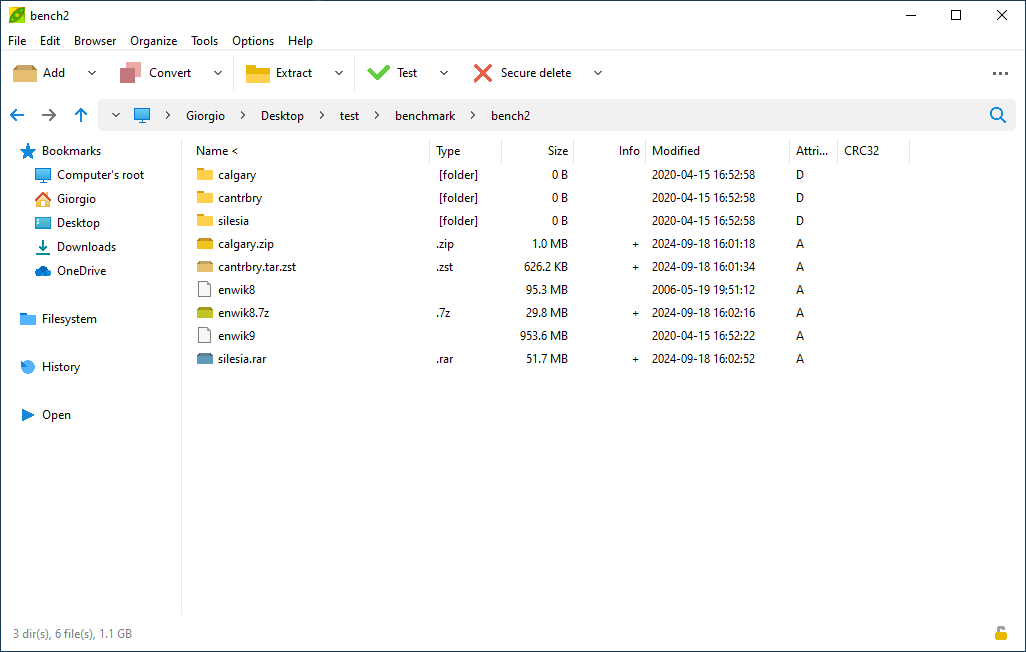
PeaZip creating an archive: format choice, compression level and encryption options in one place. Source: peazip.github.io.
The format is part of the decision
PeaZip handles many archive formats, but reading a format and creating one are different capabilities. Do not assume that a long list of supported extensions means every format has identical write, encryption or repair support.
ZIP is a familiar choice when sending ordinary files to someone whose software you do not control. 7z is another useful option when the recipient can open it and its features suit the job. Choose for the actual recipient rather than treating maximum compression as the only score that matters.
Some files compress better than others. Text-heavy material may shrink noticeably; already-compressed pictures, music and videos may change very little. An archive can still be useful for keeping those files together even when it does not make them dramatically smaller.
Build one small archive first
Select the files and folders you intend to include, then review the list in the creation interface. Check the output location and filename. It is surprisingly easy to archive a parent folder and include old exports you did not mean to send.
Before processing a large collection, make a small sample with the same kind of material. Open it and extract it into a separate temporary folder. Look at the resulting folder structure as well as the individual files.
This is a recommended workflow, not a reported benchmark. The aim is to discover a wrong setting while the consequences are small. A progress bar reaching the end tells you a task finished; it does not tell you that you chose the right files.
A password is not one universal feature
PeaZip supports encryption in several formats, including AES-based options for 7z and ZIP. The exact protection depends on the archive format and the selected method. Legacy ZipCrypto is specifically described as weak in the official guidance and is not a good choice for sensitive material.
Use a strong, unique passphrase and keep it somewhere safe. Confirm that the recipient's software supports the chosen encryption method before making it the only route to an important document. A compatible unencrypted ZIP does not prove the same application can open every encrypted ZIP.
Filenames can reveal information too. Some formats, including 7z, support encrypting names when the relevant option is enabled. Do not assume that hiding file contents automatically hides the list of files inside. If that distinction matters, test it by opening the archive without the password.
Check the archive, then think about the originals
When protecting an existing archive, be careful: the documentation says applying a password to an update does not retroactively encrypt everything already stored inside. Extracting and rebuilding the archive with the intended protection is the safer clear workflow.
After creating a protected archive, close it and test extraction with the correct password into a separate location. Check representative files. Keep the original collection until you know the archive is complete and useful, and maintain a separate backup for anything important.
Send the passphrase by a different route from the archive when practical. Putting both into the same message largely defeats the point if that message is exposed. Encryption also does not make an unknown attachment safe to execute after extraction.
A useful utility without the sales routine
PeaZip suits people who regularly exchange folders, unpack varied archive types or want deliberate control over encrypted packages. It offers more options than a simple “extract here” action needs, but you can grow into those rather than configure them all immediately.
I would start with ordinary archive creation and extraction, then add encryption once the format and recipient are settled. The best archive is one that contains the right files, opens where it needs to and does not become your only surviving copy.
Read what PeaZip supports and the encryption guide for current details.