Syncthing: Keep Your Files on Your Own Devices
- File sync
- Privacy
- Open source
Moving between two computers should not require emailing yourself the same document with increasingly desperate subject lines. “Latest” is not a versioning system. Neither is “latest-really-this-one”.
Syncthing keeps selected folders in sync between devices you choose. It is free and open source, and you do not need to rent a central cloud folder to get started. The trade-off is that you become responsible for the devices, the shared folders and a few important safety decisions.
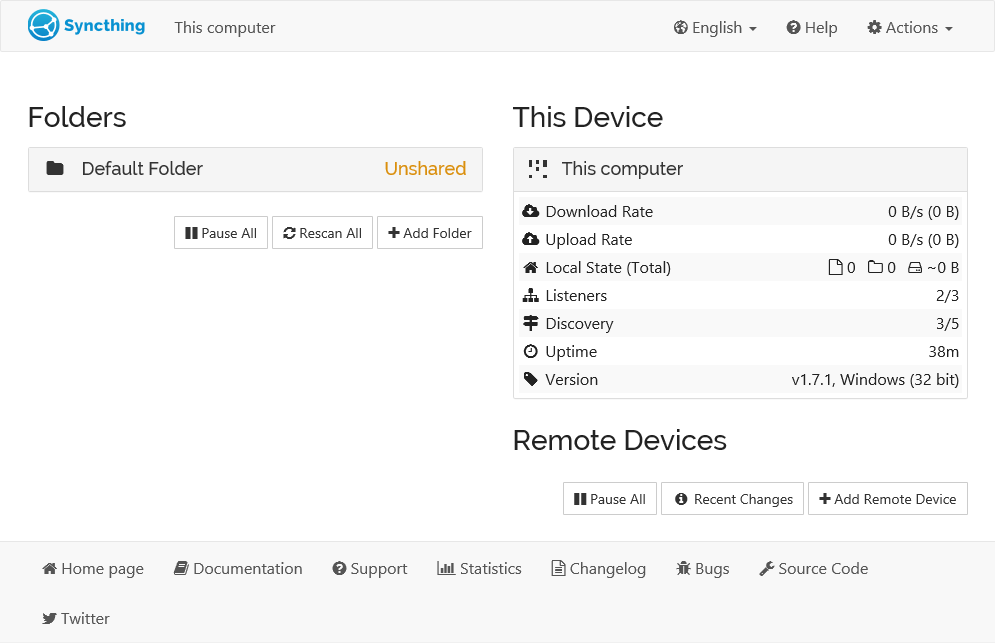
The Syncthing web interface: folders on the left, this device and remote devices on the right. Source: Syncthing documentation.
Your computers do the talking
The basic arrangement is easy to picture: a folder on one computer and a corresponding folder on another. Changes travel between them when the devices can connect. You choose which devices participate rather than signing every machine into a single storage account.
That can suit a desktop-and-laptop setup, a home workstation and a second machine, or a collection of documents you need in more than one place. It is not a magic disk that stays available when every device holding the files is switched off.
Transfers are encrypted. Direct connections are preferable, but Syncthing can use relays when devices cannot connect directly. The official FAQ says relays cannot see the transferred data. That does not mean the participating computers are protected from malware or someone opening an unlocked session.
Start with an unimportant folder
Install Syncthing on the two computers and open its local administration interface. The official getting-started guide describes a browser-based interface with folders on one side and devices on the other. Different operating-system packages may wrap that core in different ways.
Each device has an ID. Add the other device on both sides, checking the ID against the machine you actually intend to pair. Mutual configuration matters: a name such as “Laptop” is convenient, but it is not a reliable identity check on its own.
For a first run, create a small folder containing disposable sample files. Share that folder with the other device, accept the share there and choose its local location carefully. Add a file and wait for both sides to show that they are up to date. This is a suggested starter exercise, not a claim that I tested your computers.
Sync also copies your mistakes
This is the sentence to remember before pointing Syncthing at your entire working life: synchronization is not the same as backup. In a normal two-way setup, changes and deletions can propagate. Delete the wrong document on one computer and the other copy may obediently disappear too.
The project's own FAQ is direct about this. It recommends separate backup tools rather than treating synchronized copies as protection from every mistake. Think of sync as keeping work current, and backup as giving you a way back.
File versioning can help, but it is not enabled by default. It is configured per folder and per device. Crucially, it archives old files affected by changes received from another device; it does not archive every local edit you make on that same computer. Set it deliberately and keep an independent backup anyway.
Let the devices catch up
The first synchronization may involve scanning files and transferring a substantial amount of data. A folder full of large media files is a different proposition from a handful of notes. Check progress instead of closing the laptop the moment a share has been accepted.
Be careful with documents edited on both machines while disconnected. Synchronizing files is not the same as collaboratively merging the meaning of two edits. If a conflict appears, inspect both versions rather than assuming the newest timestamp identifies the best work.
Also avoid casually exposing the administration interface to the internet. A local browser page is a convenient control panel, not an invitation to make that control panel public. Keep the first setup small and understandable before adding remote access or more complicated network arrangements.
For people who want a little more control
Syncthing makes sense when you want your own devices to hold the working copies and you are willing to understand the setup. It is less suitable when you want an always-available hosted folder with no machine maintenance at all.
I would start with one useful, non-critical folder and two computers. Once that behaves predictably, add the next folder. The goal is fewer manual transfers, not a thrilling evening discovering how quickly an accidental deletion can travel.
Read the setup guide, FAQ and versioning explanation before sharing important folders.