Ventoy: Put Several Bootable Systems on One USB Drive
- Ventoy
- USB
- Utilities
One USB stick for a Linux installer, another for Windows, and a third that probably contains a rescue tool but has no label. Bootable media has a habit of becoming a small drawer-based mystery. Ventoy offers a neater arrangement: prepare one drive, copy several image files onto it, and choose which one to boot from a menu.
Ventoy is free and open source. Its official site lists support for ISO, WIM, IMG, VHD(x) and EFI files, across several firmware and processor combinations. The practical appeal is simple: adding another supported image generally means copying a file, rather than rebuilding the whole USB drive for each operating system.
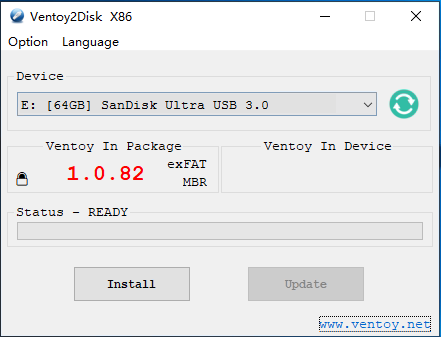
Official Ventoy setup screenshot. The version shown is illustrative; installing formats the selected drive. Source: ventoy.
The first installation is the dangerous part
Ventoy's own getting-started guide is explicit: installing it formats the USB drive and removes its existing data. That warning belongs before the instructions, not in a footnote after somebody's holiday photos have disappeared. Back up the drive and identify the correct device by more than a familiar-looking drive letter.
On Windows, the documented graphical tool is Ventoy2Disk. Choose the USB device and install. The tool lists USB drives by default to reduce mistakes; its option to show all devices deserves particular caution because it exposes disks you may very much want to keep. Linux installation routes are also documented. Do not copy a command containing an example device path without replacing it correctly.
After that, it becomes ordinary copying
Once prepared, the drive has a main partition for your image files. Copy an ISO from its official publisher, safely eject the drive, then use the computer's boot menu to start from USB. Ventoy scans folders and presents supported images in a menu. You can keep several images, including ones in subfolders, instead of endlessly overwriting a single-purpose installer.
That is useful for trying a Linux live environment or keeping installation and repair media together. It does not make the downloaded operating system trustworthy. Verify the source and any checksums or signatures the publisher provides. A tidy boot menu is not a security review of everything listed inside it.
Compatibility still has a vote
The project's large tested-image list is encouraging, but it is not a guarantee for every laptop, firmware revision and ISO. Boot modes, storage controllers and the image itself can all affect the result. If something fails, consult the current compatibility notes before rebuilding the drive repeatedly or changing firmware settings at random.
Secure Boot is a particularly important case. Ventoy documents support and possible key-enrolment steps, but it also documents limitations and its boot policy. That is not the same as promising an unchanged security posture on every machine. Read the current guide before accepting a key or changing a firmware option, especially on a work computer. An organisation's IT policy takes priority over an interesting USB experiment.
Installing an operating system is a separate decision
Booting an installer does not mean you should immediately follow it through. Many installers offer choices that can erase or repartition internal disks. Keep that boundary clear: first test that the USB menu and chosen environment start correctly, then decide what you actually intend to install and where.
For recovery media, test the drive while the computer is healthy. Discovering that a rescue tool cannot see your storage is much less stressful on an ordinary afternoon than during a failure. Keep important recovery instructions somewhere that does not require the broken computer to open them. The drawer of mystery sticks is not improved by becoming a drawer of mystery passwords.
A useful tool for a specific kind of person
Ventoy is most appealing if you regularly try operating systems, support several computers or maintain a small repair kit. If you only need one installer once, a dedicated image-writing tool may be the simpler path. Neither approach earns bonus points for being more elaborate than the task requires.
The benefit is maintenance: supported images can be added or replaced by copying files, and the project documents updating Ventoy without replacing the files on its main partition. Still keep a separate copy of anything important before drive maintenance. One well-labelled, tested USB drive beats five unidentified ones, provided the convenience never becomes a reason to rush past a disk-erasure warning.
Software details and downloads: https://freewares.org/software/ventoy
Official project: https://www.ventoy.net/en/index.html
Installation and formatting warning: https://www.ventoy.net/en/doc_start.html
Secure Boot notes: https://www.ventoy.net/en/doc_secure.html