Congratulations, You're the Family IT Department. These 8 Free Tools Will Keep You Sane.
The phone rings on a Sunday at 8:40 pm. A relative. "The internet is broken." The internet is not broken. It is never broken. But if you're the designated computer person in your family, you already knew how this call would go before you picked up. There was no interview for this job, no contract, no pay. You fixed one printer in 2009 and woke up running a help desk where every client describes the problem as "it does a thing."
Nobody applies for the position. You answer one innocent question about Wi-Fi at a birthday dinner, and suddenly your name is written in the front of every router manual in the family. In pencil. Forever.
Helping is fine. Fixing the same five problems on a loop, every few months, is where it breaks down. The way out is a change of strategy: stop fixing problems, start installing systems.
The strategy: systems, not fixes
Fixing the same issue twice isn't help, it's a subscription. Every tool below does one of two things: it either prevents a call from ever happening, or it shrinks a call down to a single message that can be answered from the couch. That's the whole philosophy. Prevention where possible, evidence where not.
The other rule: a tool that needs a lecture every month is not a system, it's homework. Everything on this list passes the strictest test in consumer software. Could a relative run it after one explanation and two printed pages of instructions? If not, it didn't make the cut, no matter how clever it is.
Every tool is free, every one runs on an ordinary family PC, and none of them will beg for a credit card after 30 days. Here's the kit.
1. KeePassXC, because the notebook has to go
Somewhere in your family there is a notebook. A physical notebook, labeled "passwords," sitting next to a computer. Half the entries are a pet's name with an exclamation mark, and the pet in question died years ago, which tells you how often those passwords change.
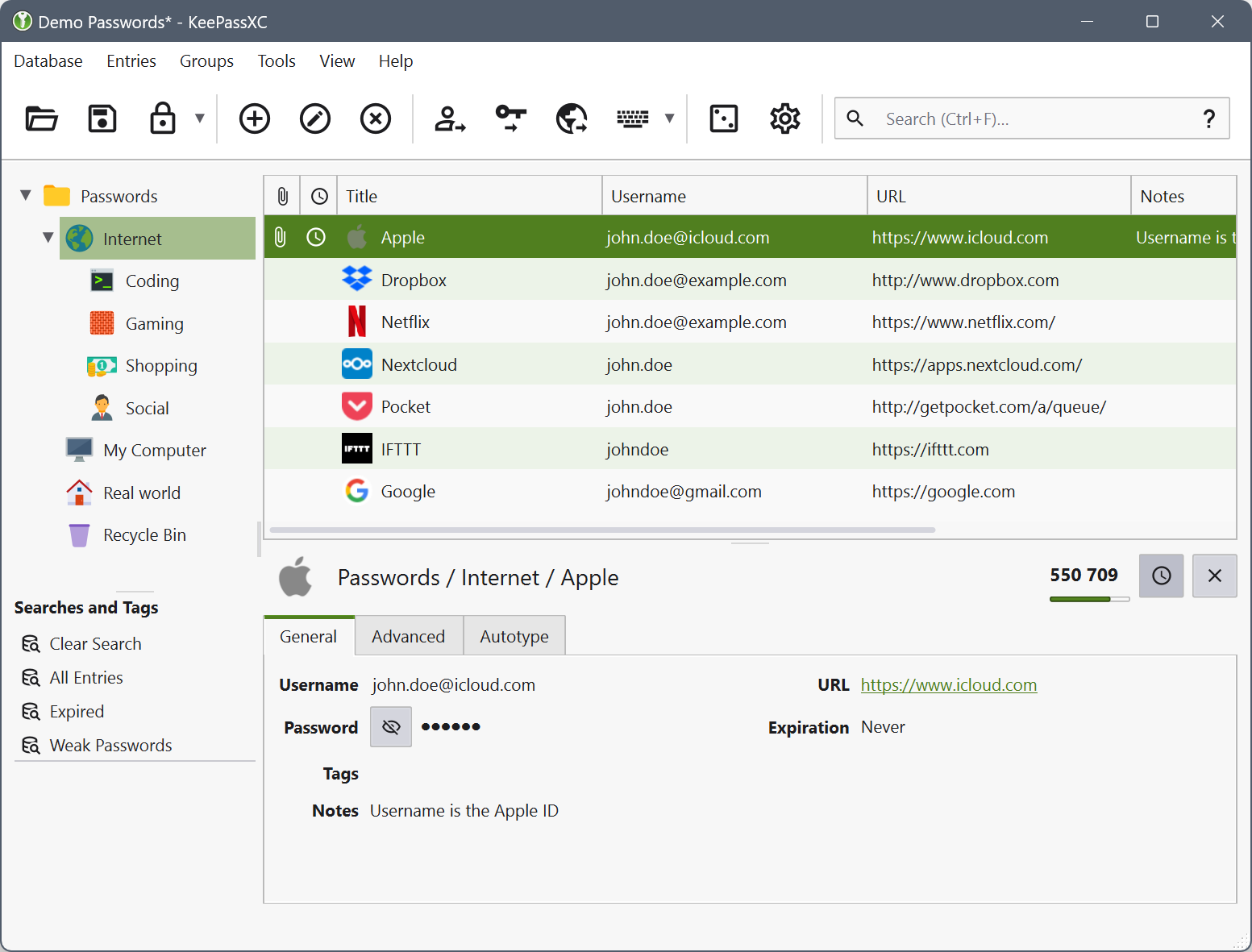
The day somebody's email account gets taken over, the notebook era ends. That's the day to install KeePassXC and block out one long Sunday lunch to move every account that matters into it. Email, bank, insurance, Facebook. The master password becomes a full sentence that's easy to remember, instead of a deceased pet with punctuation.
KeePassXC stores everything in one encrypted file on the computer itself. No account to create, no subscription, no company in the middle that can get breached on your relative's behalf. Daily use comes down to two buttons: copy username, copy password. That's the entire training program.
Two honest warnings. First, that sentence is single point of failure territory, so write it on paper and put it in a sealed envelope in a drawer. Second, expect resistance for about two weeks. Keep the notebook during the transition, then retire it like expired food. A month in, the same person will ask why everyone doesn't use one of these.
2. Syncthing, because 14,000 photos live on one phone
Every family has the phone with 14,000 photos and exactly zero backups. Often it belongs to someone who distrusts "the cloud," and honestly, that's a fair position with terrible execution.
Syncthing ends the argument because it isn't the cloud. On the same home Wi-Fi, photos travel directly between the phone and the laptop, encrypted, with no account and no monthly fee. One honest caveat about "nothing leaves the house": out of the box, Syncthing also contacts public discovery servers so your devices can find each other, and it can fall back on encrypted community relays when a direct connection fails. The files themselves stay encrypted either way, but if the household rule is strict, global discovery and relays can both be switched off in the settings.
One practical note for Android: the original official app was retired at the end of 2024, and the maintained option is now the community fork, Syncthing-Fork. Same protocol, same family, still free. Setup takes about twenty minutes, mostly because Android permissions are a maze designed by someone who hates people. After that it mostly runs itself, as long as both devices are awake on the same network once in a while. And the payoff is real: one day that phone will meet a lake, a toilet, or a tiled floor, and the difference between "lost a phone" and "lost the grandchildren" is exactly this setup.
Two honest limits. First, Syncthing syncs, which means it also syncs deletions, and by default it keeps no old versions. Switch on file versioning on the receiving laptop, and replaced or deleted files get parked in a local archive folder instead of vanishing. Second, sync is not backup: twice a year, copy the whole photo folder onto an external drive that lives in a drawer. Belt and suspenders. The suspenders take fifteen minutes.
3. Everything, because files "disappear" daily
"I saved the document and now it's gone." This call used to mean twenty minutes of digging through folders while someone breathes into the phone. Windows search doesn't help. It thinks about the question for a while, then shows a web result for a restaurant.
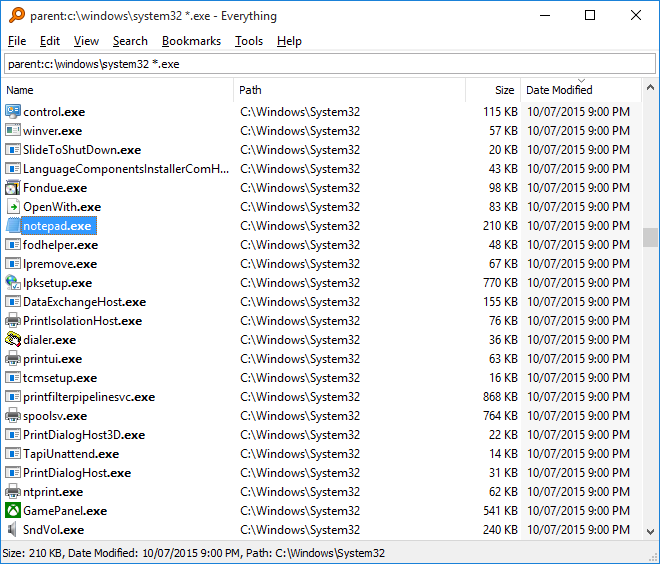
Everything is a tiny program that indexes every file name on the drive and answers as you type. Instantly. Now the call goes: "Click the magnifying glass, type three letters of the name." The file was in Downloads. It's always in Downloads. No, the other Downloads.
Fair warning, it searches file names, not the text inside documents. For a family PC that's fine. Nobody's memoir is hiding in there; they're looking for the tax PDF.
4. 7-Zip, because "the file won't open"
Somebody's colleague sends a .rar. Somebody's bank sends a .zip. Credit where due: current Windows 11 opens both on its own these days, and can even create basic Zip and 7z archives. But the moment the job gets real, the built-in support bows out. No encryption, no splitting a big archive into email-sized parts, no testing a dodgy file for corruption. 7-Zip does all of that, opens everything anyone will ever attach to an email, and never once asks for money. Compare that to the WinRAR "40-day trial" that somebody's uncle has been dismissing since 2003. Legendary discipline, but there was a better way.
5. ShareX and ScreenToGif, because "it shows an error" is not a diagnosis
Remote tech support lives and dies on evidence, and families report bugs like riddles. "It shows an error." What does it say? "I closed it." Where did it come from? "The computer."
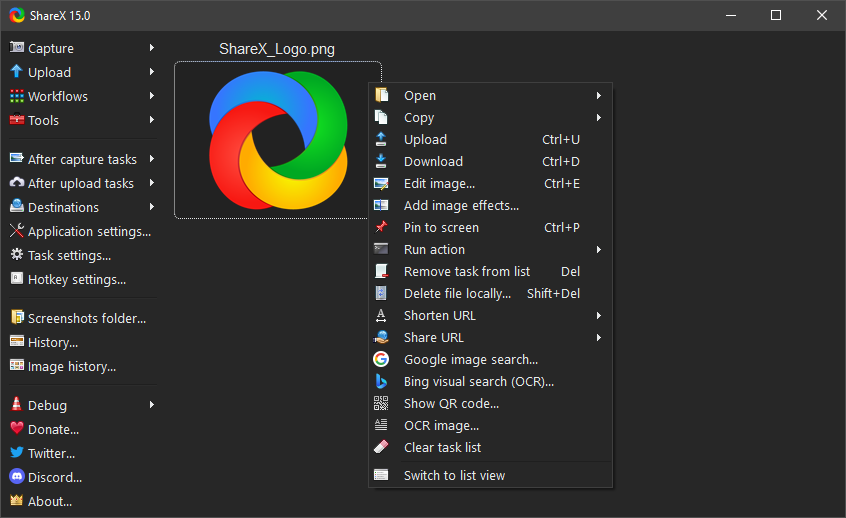
The fix is ShareX with one big memorable hotkey on every family PC. Press it, drag over the error, the screenshot copies itself to the clipboard. They paste it into the family chat, you see the actual message, problem solved in one round instead of six. ShareX can do a hundred more things, workflows and uploads and OCR, but for family duty the hotkey alone pays for the install. Which is saying something, because it's free.
Some problems move, though. The flickering window, the button that runs away from the cursor. For those, ScreenToGif: draw a frame around the troublemaker, record ten seconds, send the GIF. The first time a relative sends a tidy little recording instead of describing the screen as "jumping," it's a small miracle. From that day on, the family sends evidence. It's like being a detective who finally got a crime lab.

6. Ventoy, the stick that lives in the jacket
Every family IT department needs the USB stick. The one that lives in a jacket pocket, next to the house keys, ready for the day a computer simply refuses to computer. A good rescue stick has saved more holiday dinners than any recipe. The turkey was fine.
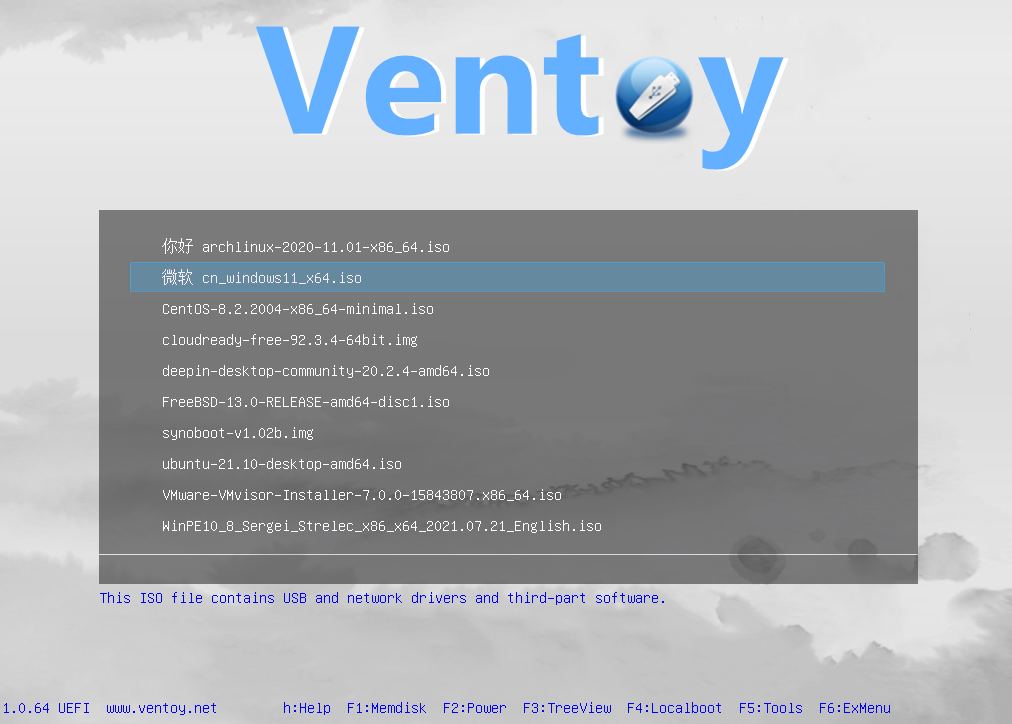
Ventoy makes that stick bootable in the laziest way possible: install it onto the stick once, then copy ISO files over like regular files. At boot, a menu appears and you pick one. A sensible loadout is a Windows installer, a Linux Mint live session for pulling files off dying disks, and a memory tester for when a PC starts beeping like a microwave.
That Mint session is the real hero of the toolkit. Windows refusing to boot doesn't mean the files are gone; Linux will happily read a dying disk while everyone paces the kitchen. Before Ventoy, rebuilding a rescue stick meant re-flashing it for every new tool. Now it's drag a new ISO on, delete the old ones. It's the only part of the kit that feels like cheating.
7. PowerToys, the quiet bonus round
Once the big problems are handled, install PowerToys and leave a few gifts behind. PowerRename fixes the folder of 300 photos named IMG_4567 in one pass. FancyZones tames an enormous monitor so windows snap where they should. And PowerToys Run means nobody has to hunt through the Start menu for the calculator ever again. Small stuff, but small stuff is what people notice every single day.
What the kit doesn't cover
Boundaries matter, even unpaid. Printers are out. Printers are between you and God. "Quick questions" about crypto can go to someone else, and phone problems can go to whichever cousin owns the same brand of phone. Specialization is healthy.
The standard rate for family tech support is cake, and honestly the arrangement holds up. Cake has closed more tickets than any support contract ever will, and unlike a warranty, it shows up on time.
The whole kit, one afternoon
Everything above fits in a single visit: KeePassXC for the passwords, Syncthing for the photos, Everything for the lost files, 7-Zip for the mystery attachments, ShareX and ScreenToGif for evidence, Ventoy for the day everything burns, and PowerToys for comfort. Total cost: zero euros. Total time: one afternoon per relative, plus cake logistics.
Will the calls stop completely? No. Something always finds a way, usually a Windows update or a cable that was "definitely plugged in." But the calls change shape. They go from "everything is broken and I'm panicking" to "here is a screenshot, no rush." That's a win worth baking for.
The best tech support call is the one that never happens. If you're the family IT department too, install the kit, print two pages of instructions with big screenshots, and enjoy the silence. It won't last forever. But it lasts longer than you'd think.