The First 10 Free Programs Worth Installing on a New PC
A new computer has about nine minutes of purity. The desktop is clean, the drive is empty, and everything opens instantly. Then the trial antivirus starts screaming for a credit card, the manufacturer's "experience center" wants you to create an account, and somehow a game called Bubble Something is already pinned to your taskbar.
Setting up a new PC is a ritual, and the order matters more than people think. Put the right free tools on the machine before you fill it with files, photos and bad habits, and it will still feel fast in three years. Skip them, and next spring you will spend a Saturday wondering where 400 gigabytes went and why the fan sounds like a leaf blower.
This is the short list worth installing on day one, in roughly the order to do it. Every program here is free, every one has been around long enough to trust, and none of them will nag you into a subscription. Links go to our own reviews, where you can grab the official download safely.
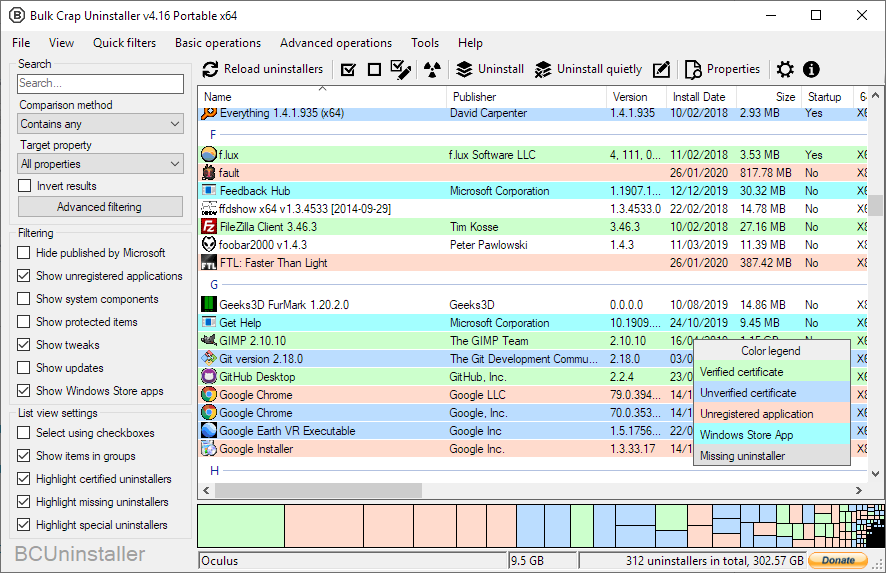
First, take out the trash: Bulk Crap Uninstaller
Before installing anything, remove what should never have been there. New PCs ship with trial security suites, casual games, shopping apps and vendor utilities whose entire job is to ask for money later.
Bulk Crap Uninstaller (BCU) is a free, open source uninstaller that does what Windows Settings refuses to: queue up every piece of junk, tick them all, and remove them in one batch. It also hunts leftovers, the orphaned files and registry entries that uninstalled programs leave behind, and it can force-remove stubborn entries that no longer show an uninstall button.
One caution: BCU is thorough, which means it lists everything, including drivers and vendor tools you might actually want, like the utility that controls your laptop's function keys. Read the list before you nuke it. When in doubt, uninstall the game, keep the driver.
1. Everything: find any file before you finish typing its name
Windows search has improved over the years, and it is still not good. Everything, from voidtools, indexes every file and folder name on your NTFS drives and returns results as you type, literally character by character. The first index builds in seconds, because it reads the drive's own file table instead of crawling through folders.
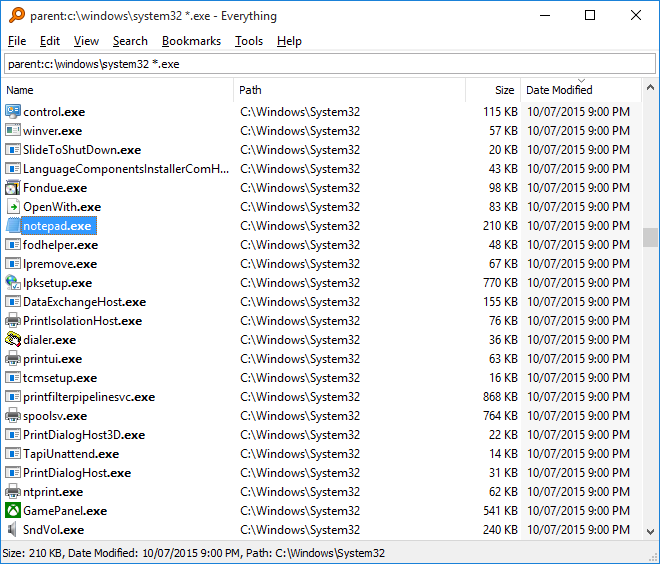
Once you get used to typing three letters and watching the file appear, the Start menu search feels like asking for directions by mail. Everything is freeware rather than open source, it is Windows only, and it indexes names, not the text inside files. A content search does exist (the content: function) for the rare times you need it, but it is slow, precisely because there is no content index behind it. For finding the invoice you saved somewhere in 2024, nothing else comes close.
2. 7-Zip: the archiver that never asks for anything
Credit where due: current Windows extracts ZIP, RAR, 7z and TAR files on its own, and recent builds can even create Zip and 7z archives from the right-click menu. What it still cannot do is make an encrypted archive, split a big archive into parts, or give you that beautiful "extract here, extract to its own folder" right-click menu.
7-Zip has done all of that for free since the last century. It is open source, it creates 7z and ZIP archives with AES-256 encryption, and it has never shown an ad, a trial banner or a nag dialog to anyone. The interface looks like 2004, because it is 2004. Consider it part of the charm.
3. VLC media player: stop worrying about file formats
Somebody sends you a video. Your default player opens, thinks about it, and declines. VLC media player plays it. Whatever it is: MKV, FLAC, an ancient AVI from an old digital camera, a DVD, a network stream. It is built by the nonprofit VideoLAN project, it shows no ads, and it runs on Windows, Mac, Linux, Android and iOS.
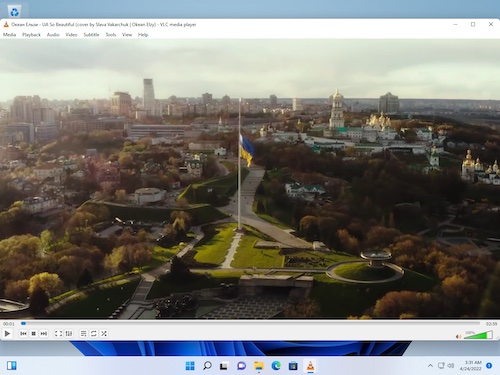
VLC also converts files, rips discs, records your screen and streams to other devices, though the menus for those tricks are buried deep enough that you will want a tutorial the first time. The one thing it cannot always handle is copy-protected commercial Blu-ray discs, which is less a VLC problem and more an industry problem. Install it, forget it, and never think about codecs again.
4. Notepad++: a real text editor
Windows Notepad has gotten better lately, and there is still a gap between "better" and a proper editor. Notepad++ opens instantly, handles huge log files that make other editors cry, highlights syntax for dozens of languages, records macros, and remembers your unsaved tabs forever. Editing a config file, cleaning up a CSV, scanning a giant export: this is the tool.
It is free, open source, and Windows only. If you live on several operating systems or write code for a living, Visual Studio Code is the bigger cross-platform choice, also free. For quick everyday editing on Windows, Notepad++ stays the default for a reason.
5. LibreOffice: the whole office, no subscription
A new PC often arrives with an Office trial that quietly expires into a subscription reminder. LibreOffice is the free, open source answer: Writer for documents, Calc for spreadsheets, Impress for presentations, plus drawing and database tools. It opens and saves Microsoft formats, exports PDFs, and is maintained by The Document Foundation, a nonprofit.
Be honest with yourself about the trade-off. Straightforward documents, spreadsheets and slides move between LibreOffice and Microsoft Office without drama. A 90-page Word file full of tracked changes, macros and exotic fonts may shift around. If your job hands you files like that daily, you will end up paying for Office anyway. For homework, invoices, letters, resumes and family budgets, LibreOffice is all the office you need.
6. Bitwarden: passwords you never have to remember
A new PC means signing into everything again, which is the exact moment most people discover they do not actually know any of their passwords. Bitwarden fixes this permanently. The free tier stores unlimited passwords and syncs them across unlimited devices: your PC, your phone, your browser. It is open source, it handles passkeys, and there is a cheap premium tier if you ever want extras like built-in two-factor codes.
The deal is simple: you remember one strong master password, Bitwarden remembers everything else. That also makes the master password the one password nobody can email you a reset link for, so make it long and write it down somewhere safe. If you would rather keep your vault offline on your own disk, KeePassXC is the local-storage alternative we also recommend.
7. Ditto: a clipboard with a memory
The Windows clipboard holds exactly one thing, which is wild when you think about how often you copy and paste. Ditto is a free, open source clipboard manager that remembers everything you copy: text, images, links. Hit its hotkey, search your history, and paste the address you copied twenty minutes ago. You can pin clips you reuse all the time and paste as plain text, which alone justifies the install when you are moving text between apps that fight over formatting.
One sensible habit: Ditto remembers what you copy, including the password you just copied out of Bitwarden. Either clear the history after sensitive copies or add your password manager to Ditto's exclusion list. Five seconds of setup, no surprises later.
8. WinDirStat: see where the disk space went
Six months from now your drive will be full and you will not know why. WinDirStat scans a drive and draws it as a map of colored rectangles, one per file, sized by how much space each one takes. The giant block in the corner is the 60 GB game you forgot about. The medium one is your phone's backups. Deleting becomes a video game.
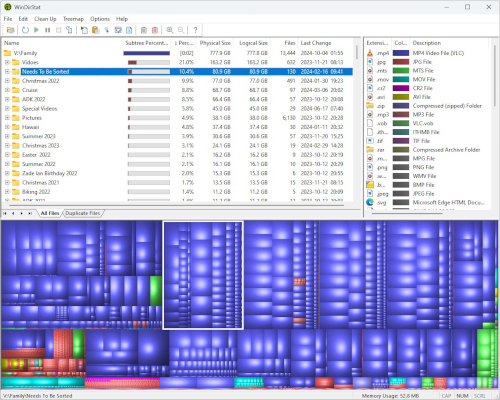
It is free and open source. A full scan takes a few minutes on a big or slow drive; if you want the same answer in seconds, WizTree reads the file table directly and is almost instant, though it is freeware rather than open source. One real warning: get WinDirStat from its official site. Its popularity has attracted lookalike download pages over the years that bundle extras nobody asked for.
9. PowerToys: Windows, with the good parts turned on
PowerToys is Microsoft's own open source toolbox, the features that never made it into Windows itself. FancyZones lets you design custom window layouts and snap apps into them, turning one big monitor into a small fleet of virtual ones. PowerRename batch-renames files with search and replace. PowerToys Run is a fast app launcher. Add a color picker, a keyboard remapper and a text extractor that pulls words out of images, all free, all from Microsoft itself.
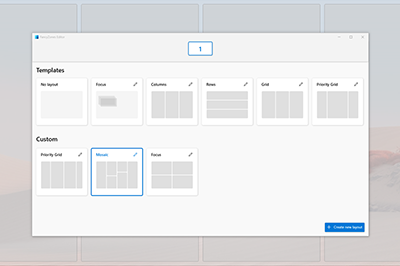
You need Windows 10 version 2004 or later, or Windows 11, which any current PC already has. The only real catch is that Microsoft keeps absorbing the best toys into Windows, so a favorite occasionally becomes redundant. A good problem to have.
10. Honorable mentions
A few more free staples, depending on what you do:
ShareX if you take screenshots seriously: capture, annotate and share in one keystroke.
qBittorrent for torrents without the ad-infested clients.
GIMP when you need real image editing without the Photoshop subscription.
Firefox or Vivaldi if you want a browser that is not also an advertising company.
Do it in the right order
The sequence is simple. Uninstall the junk with BCU first, while the machine is still clean. Install your password manager early, because you will be signing into accounts all day. Then the daily tools: Everything, 7-Zip, VLC, Notepad++, LibreOffice and Ditto. WinDirStat and PowerToys can wait for the weekend.
If clicking through ten installers sounds like a chore, Ninite (ninite.com) installs many of these in one unattended bundle, free for personal use, and it automatically declines every toolbar and opt-out checkbox along the way.
One last habit that costs nothing: download from official sites only. Free programs are favorite disguises for bundle sites that wrap the real installer in junk. When in doubt, search the program's name and pick the developer's own domain, not the first ad above it. Ten programs, zero dollars, and a PC that still feels new long after the bubble game is gone.